Making Corrections
Standard Operating Procedure (SOP): Making Corrections in Expert InsuredImportant Rules:
- Admin Access is Required - Only users with admin-level permissions can perform corrections in EI.
- Corrections are limited to the last completed transaction - Corrections can only be made on the most recently bound transaction. If there is a transaction in process, the last bound transaction is still available to be corrected.
- Once a new transaction is bound, the previous transaction becomes locked - i.e., if an endorsement is bound, the policy bind transaction is then locked and cannot be corrected.
- Cancellation Endorsements and Reinstatement Endorsements can be corrected.
- Notices of Cancellation/Reinstatements cannot be corrected.
- Corrections can be made on submissions with pending cancellations.
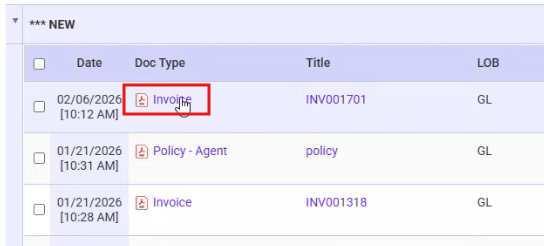
- Once a correction is made, a new invoice is created - When a correction is completed, a new invoice is generated, which replaces the original invoice for that transaction (no credits/debits are created).
- Most policy and accounting fields are eligible for correction - Some examples of items that can be corrected include the effective dates, location state, commission details, billing type, and policy fees.
- BOR changes are not eligible for correction - Any BOR changes must be made using the standard BOR Process; a correction cannot be used.
- Corrections can be internal-only - For example, if the Total Commission is being corrected, the new invoice does not need to be sent to the agent; the change can just be made in EI.
- Notes are mandatory and permanent - All corrections require clear, detailed notes explaining the reason for the change. These notes become permanent system records.
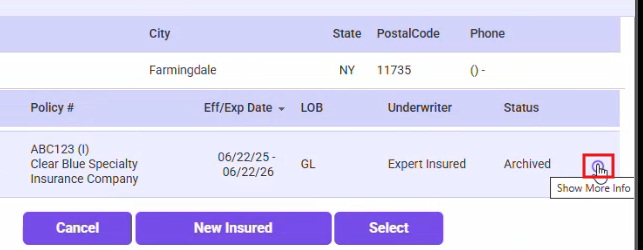
1. Search for the policy in Expert Insured (EI) >> Click on the Show More Info icon.
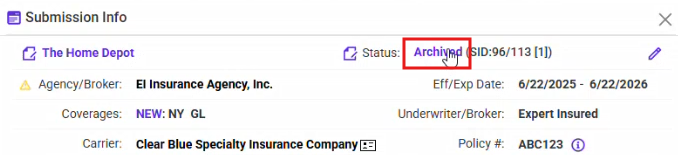
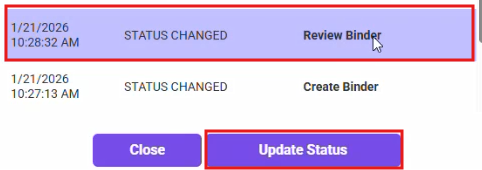
2. Click on the Status link.
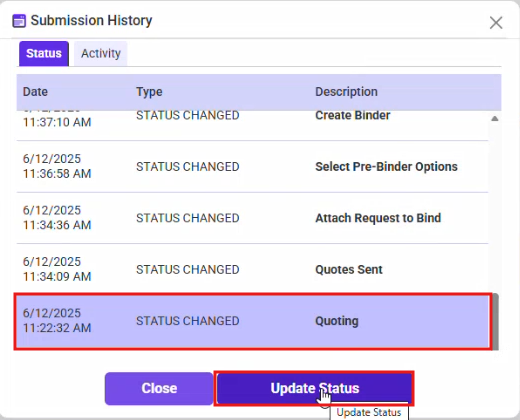
3. Select the Status that is needed, depending on where the correction is to be made >> Click Update Status.
a. Some Examples:
- i. Policy Dates and Location State corrections: Select the Quoting Status.
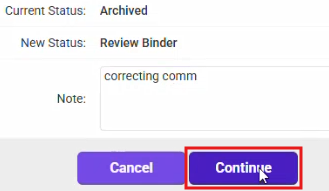
- ii. Policy Amounts (Premium/Fees), Commission Changes, Bill Type changes: Select the Review Binder Status.
-
b. In the Note field, enter a brief, but specific description stating the correction you will be making >> Click Continue.
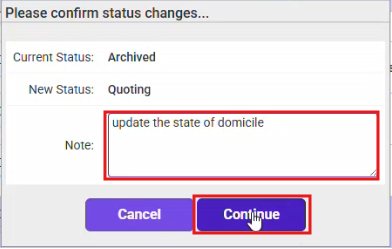
4. Make the correction.
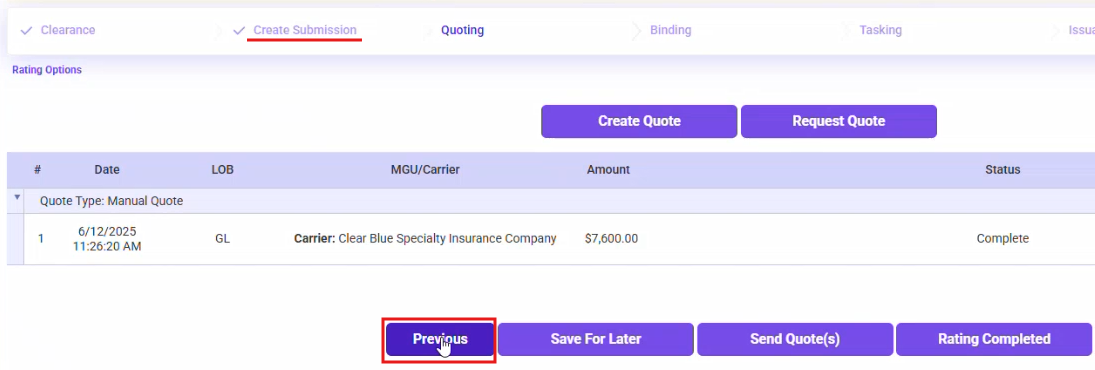
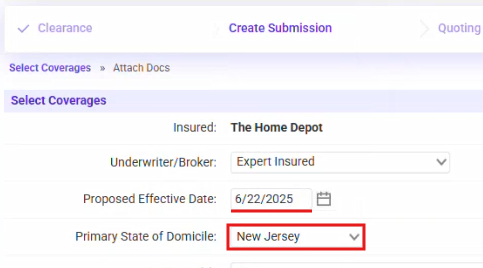




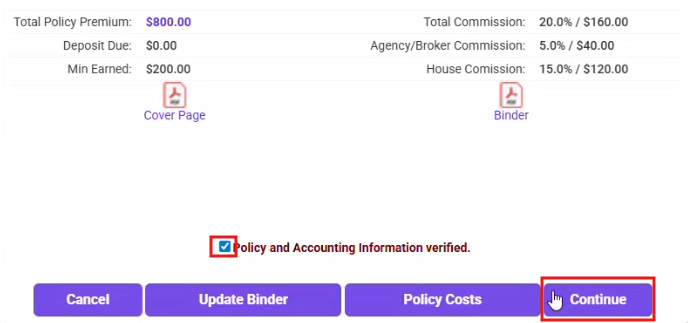


a. Correcting the Policy Dates/Location State:
i. Click Previous to get to the Submission.
ii. Correct the Policy Dates/Location State.
iii. Click Continue Processing/Continue/Bypass to navigate through the statuses to bind the transaction.
Note: Since all documents have already been attached and all items emailed to the agent (until you get to the new invoice, if applicable), all screens can just be skipped to bind the transaction.
1. Once you click Rating Completed, the policy will close.
2. Click on In Process.
3. Click on the policy to finish binding the transaction.
iv. Once the policy and accounting information is verified, the new invoice will be generated.
b. Correcting the Commissions:
i. Select to update the status to ‘Review Binder’ >> Enter a note stating what is being corrected.
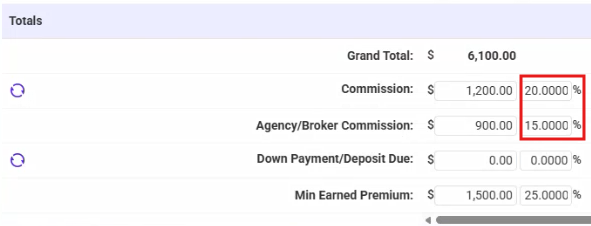
ii. Click on the Policy Costs button.
iii. Correct the Commissions.
iv. Click Continue >> Navigate through the statuses to bind the transaction.
5. If needed, email the new invoice to the agent. This invoice replaces the previous invoice for the corrected transaction.