Attaching the Policy
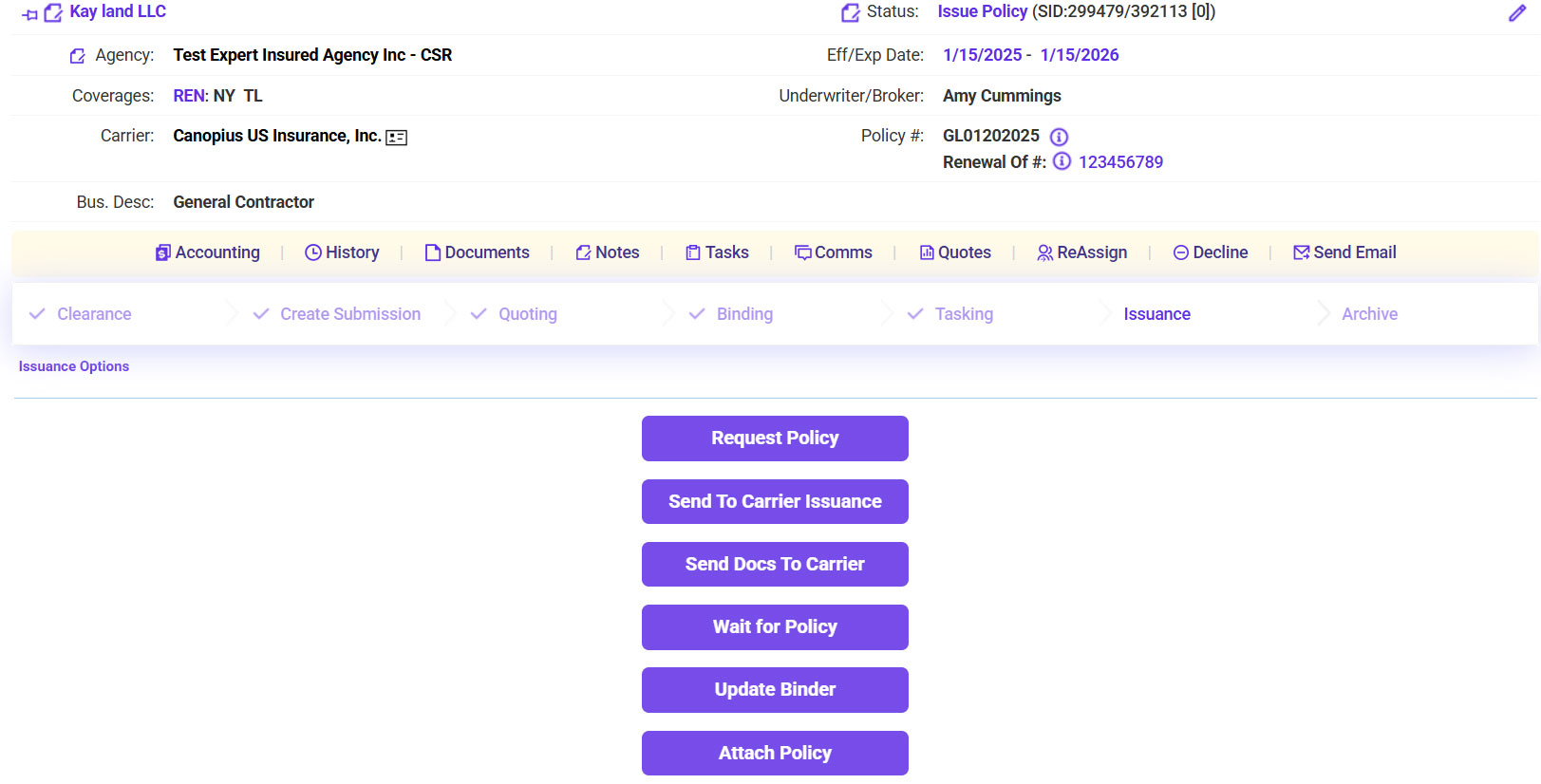
- Once the policy has been received (or pulled from the carrier’s system), click on the Action Required workflow in Expert Insured >> Search for the Insured >> Open the account from the results.
- Click Attach Policy.
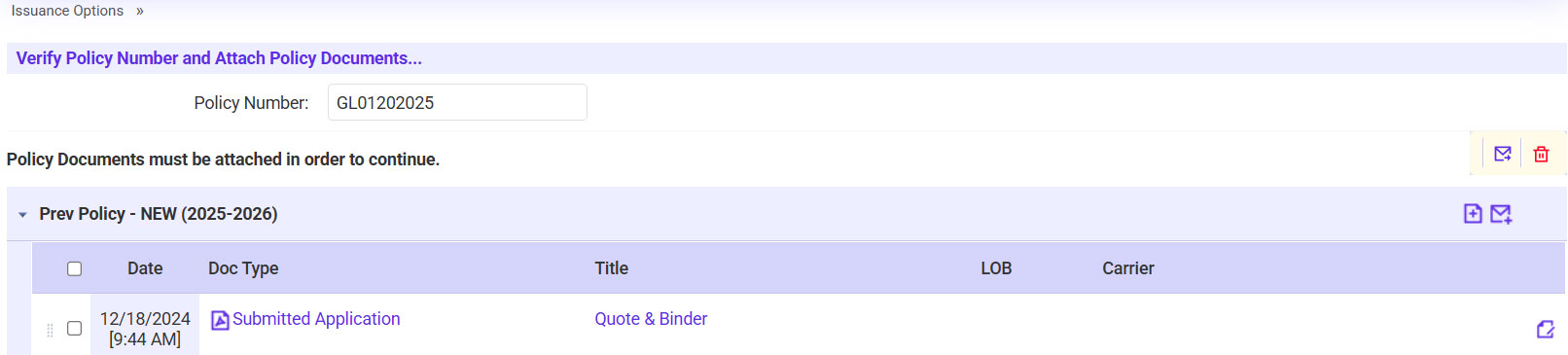
- Attach the policy documents.
- Click on the plus sign icon.
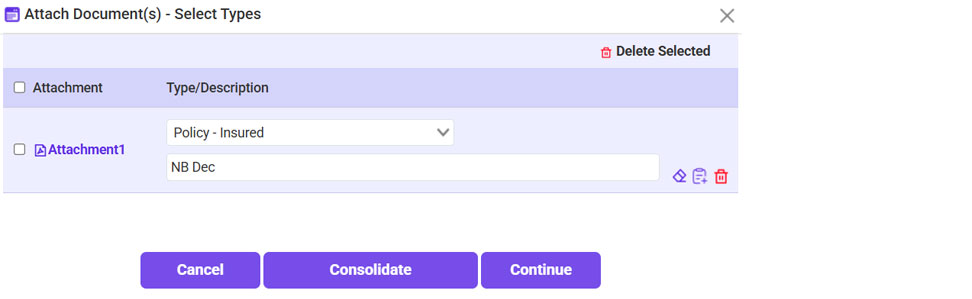
- Click Browse >> Select the Policy Documents >> Click Continue.
- For the Type, select ‘Policy - Insured’ >> Click Continue.
- Click Continue once the policy is attached in Expert Insured.
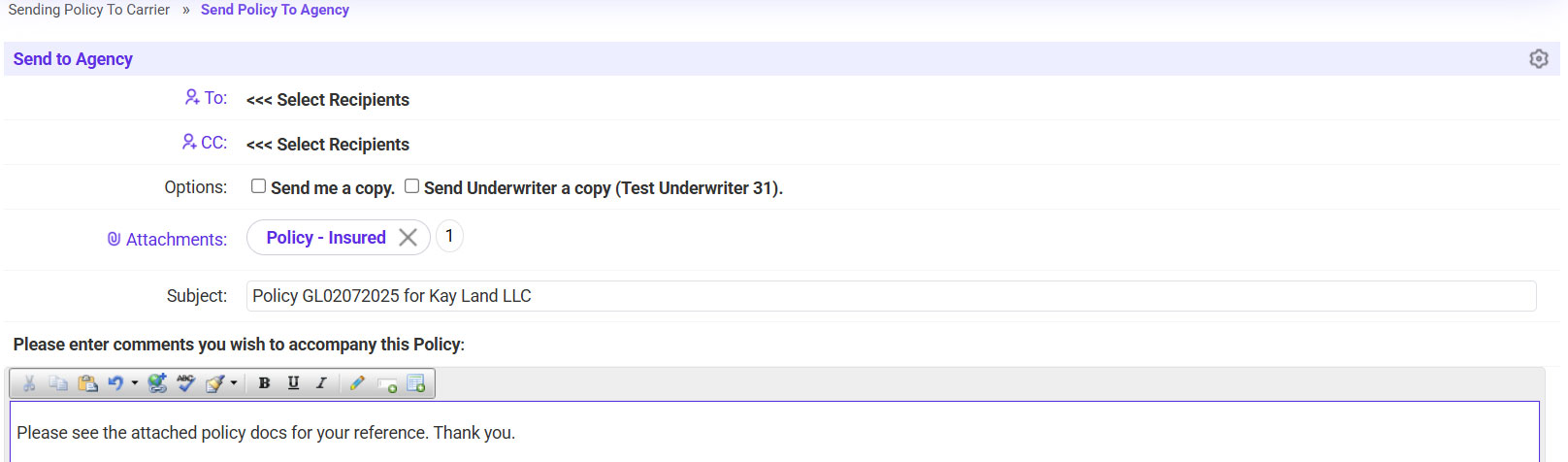
- Send the policy to the agent.
- Click on the ‘To’ link >> Select the agent’s email address.
- If needed, copy any additional recipients.
- Click Continue to send the policy to the agent and mark the account as bound in EI.