Tasks
Creating a New Task
- Click on the Tasks queue at the top of the page in Expert Insured.
- Click on Create New Task.
- Enter the policy number or insured’s name >> Click Search.
- Select the applicable policy >> Click Continue.
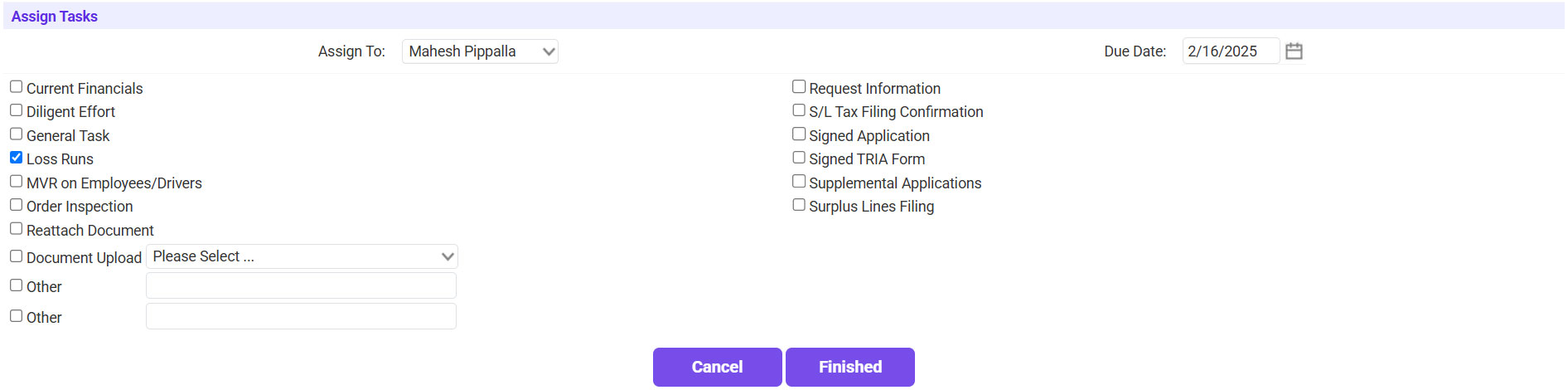
- Fill in the Task Information.
- Select who the task should be Assigned To.
- Enter the task Due Date.
- Check the box next to the applicable task or use the Other option to create a task that is not listed.
- Click Finished to create the task.




Working on an Existing Task
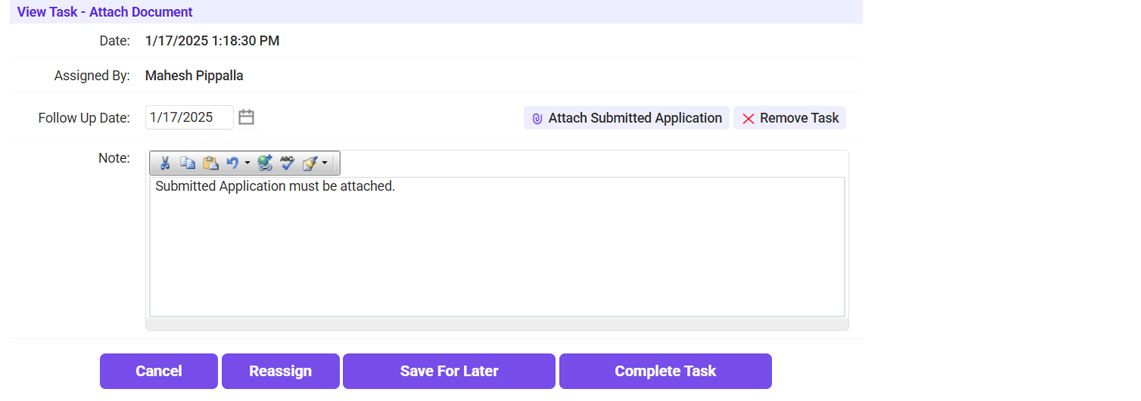
- Click on the Tasks queue at the top of the page in Expert Insured >> Click on the task you are working on. This example is a task to attach the submission app.
- Click on the Attach Submitted Application link.
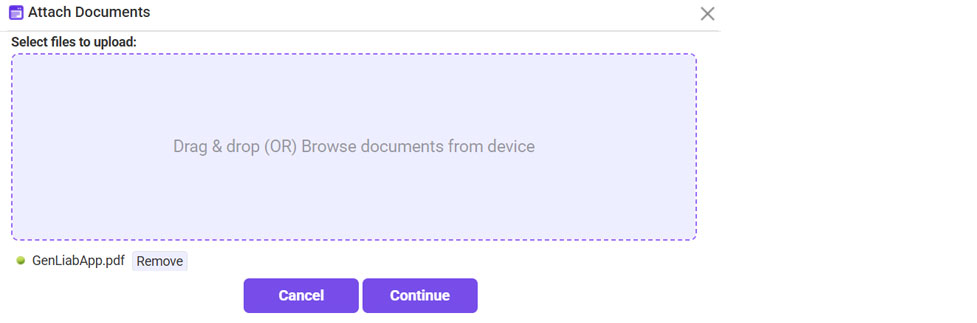
- Click Browse >> Select the application >> Once it is attached, click Continue.
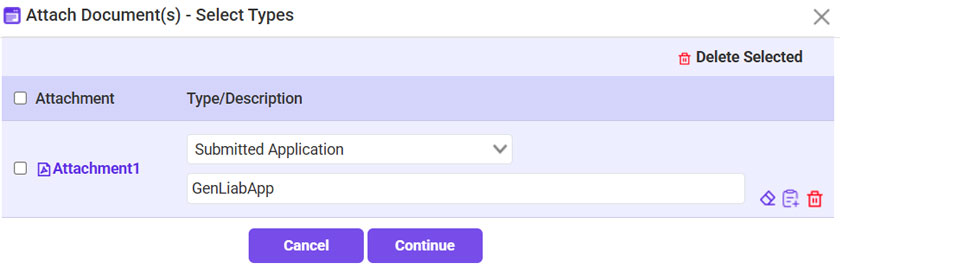
- For the Type, select Submitted Application >> Click Continue.
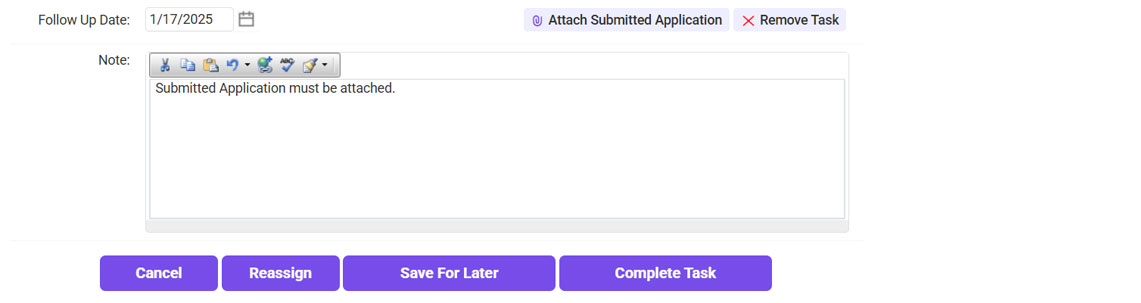
- Once the app has been attached, click Complete Task.
- Or, if needed, update/reassign or follow up on the task.