
SOP - Inspections: Ordering & Recommendation Management
- Create Inspection Task
- Go to the relevant policy file.
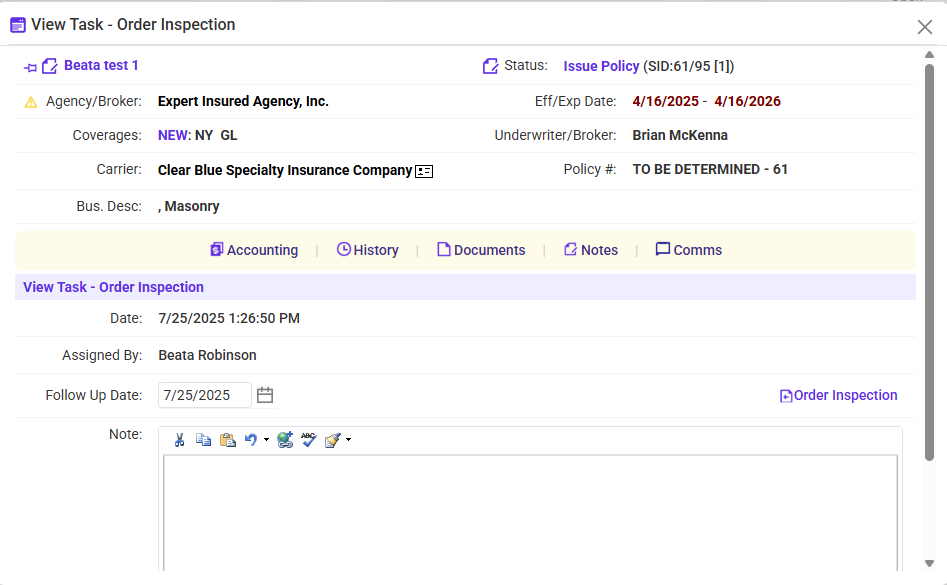
- Create a new task labeled "Order Inspection".
- Note: You can also create "Order Inspection" task while you are binding the policy.
- Click "Order Inspection"
- Within the task or inspections section, click the "Order Inspection" button.
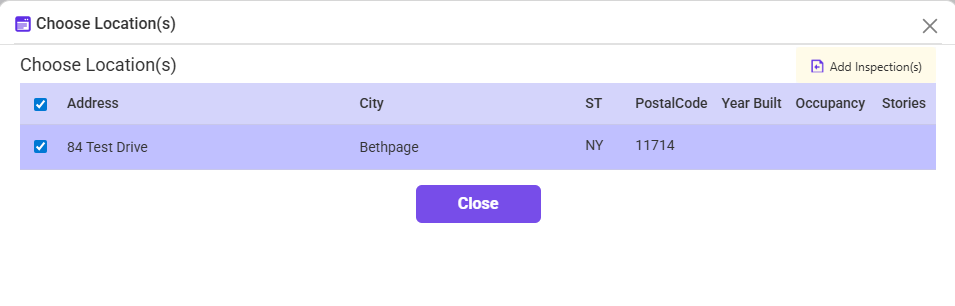
- Select Locations
- Choose the applicable location(s) for the inspection and click “Add Inspection (top right corner)
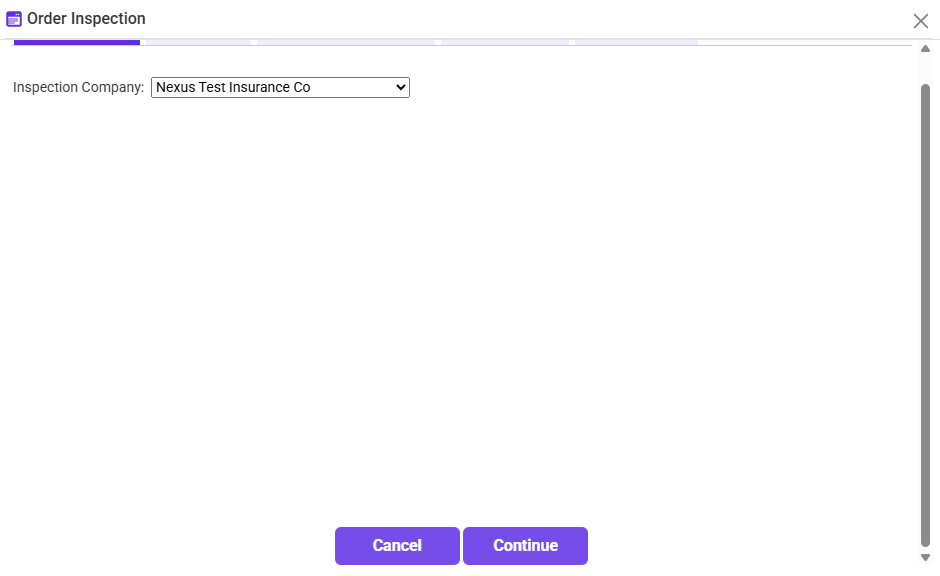
- Select the Inspection Company, Click “Continue”
- Enter Required Information
- Insured Info: Enter name, contact details if not auto-filled.
- Broker Info: Enter broker name, and contact if not auto-filled.
- Submit Order
- Click "Order via Web Services" to place the inspection order with the vendor.
- Confirm Submission
- Ensure confirmation is received or logged in the system
