Auto-Renewals
- From the Home screen, go to Find >> Select Insured.
- Enter the insured’s name/policy number >> Click Search.
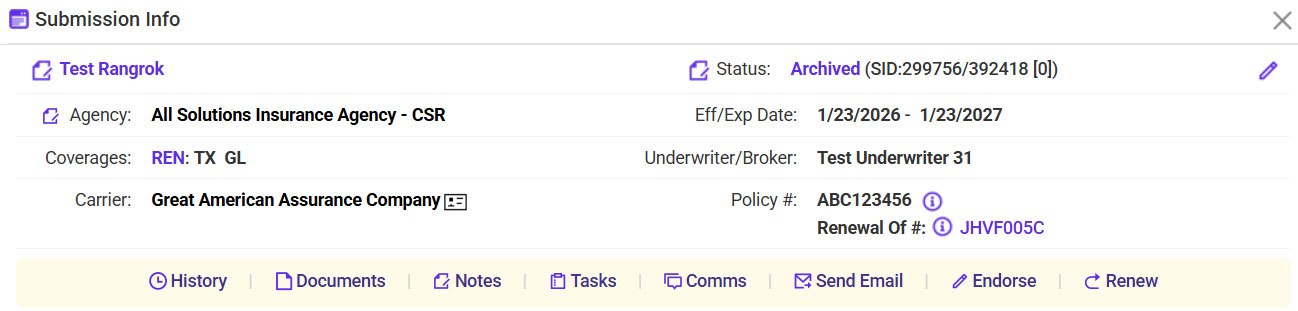
- Locate the policy you are renewing >> Confirm the Status is ‘Archived’ >> Click on the ‘i’ information button.
- Click Renew.
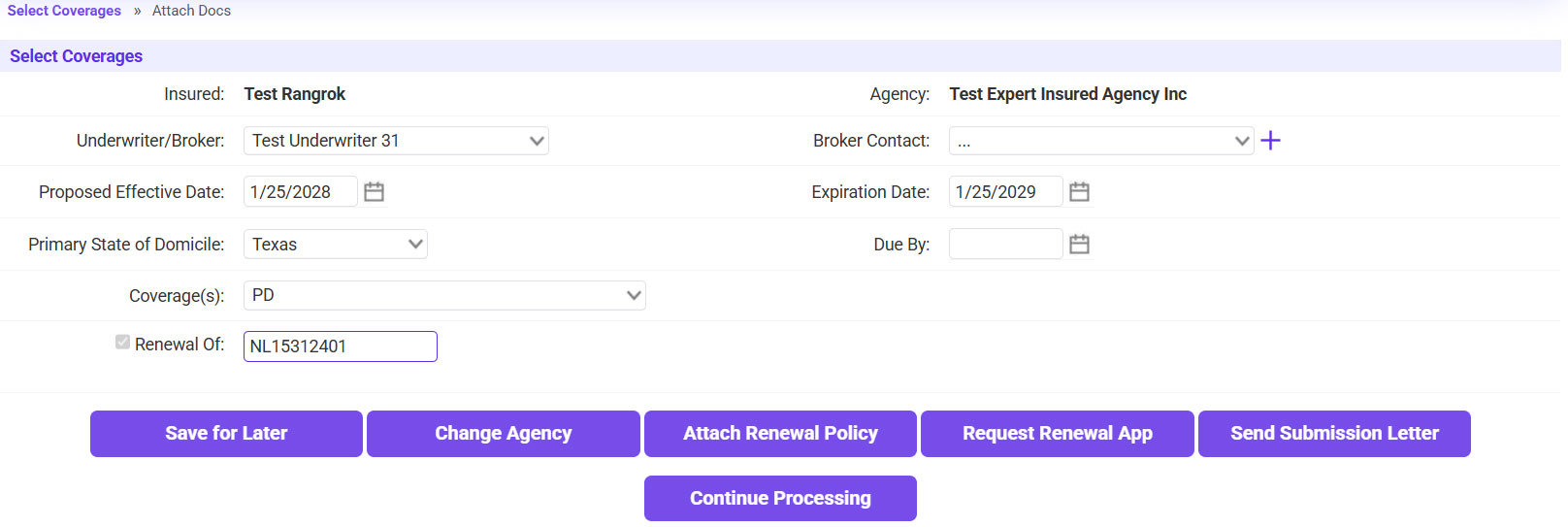
- Click Begin Renewal Process.
- Click Attach Renewal Policy.
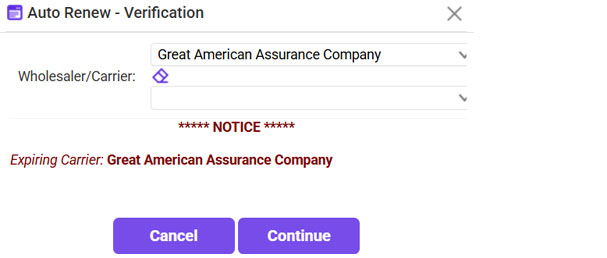
- Click Continue.
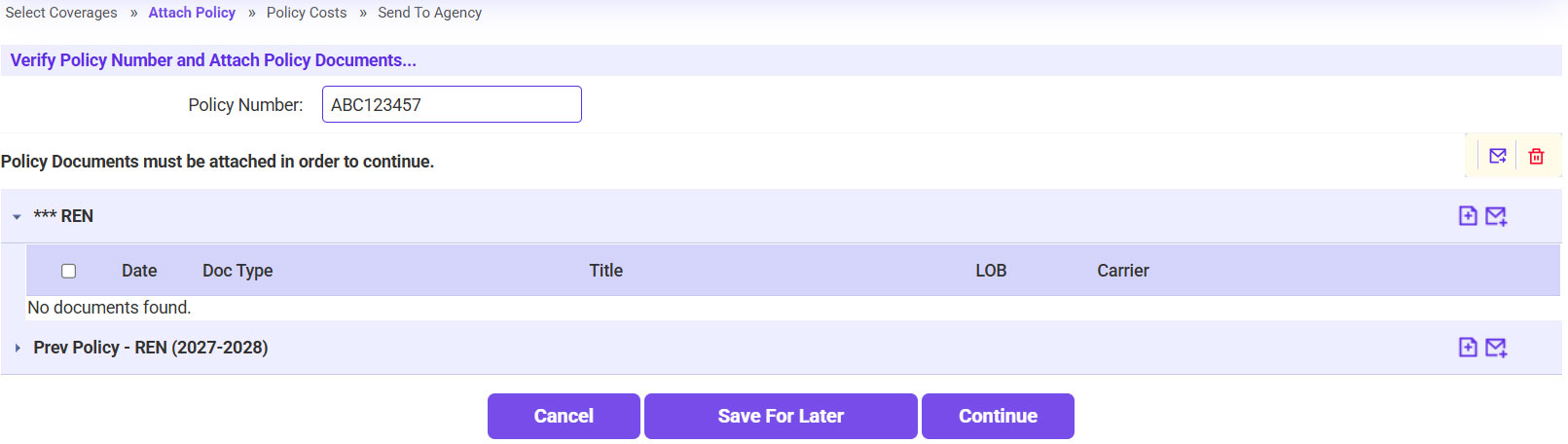
- Enter the renewal policy number >> Click on the plus sign icon to attach the renewal policy.
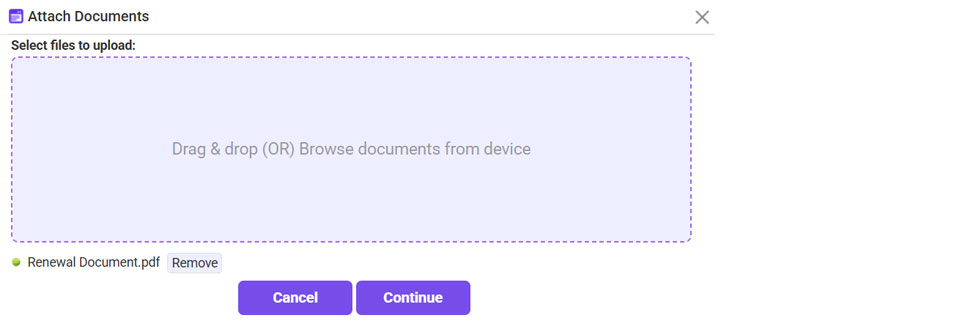
- Click Browse >> Select the Renewal Policy >> Click Continue.
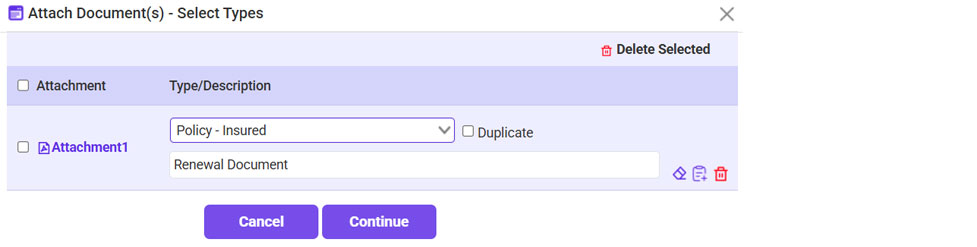
- For the Type, select ‘Policy - Insured’ >> Click Continue.
- Once the renewal documents are attached, click Continue.
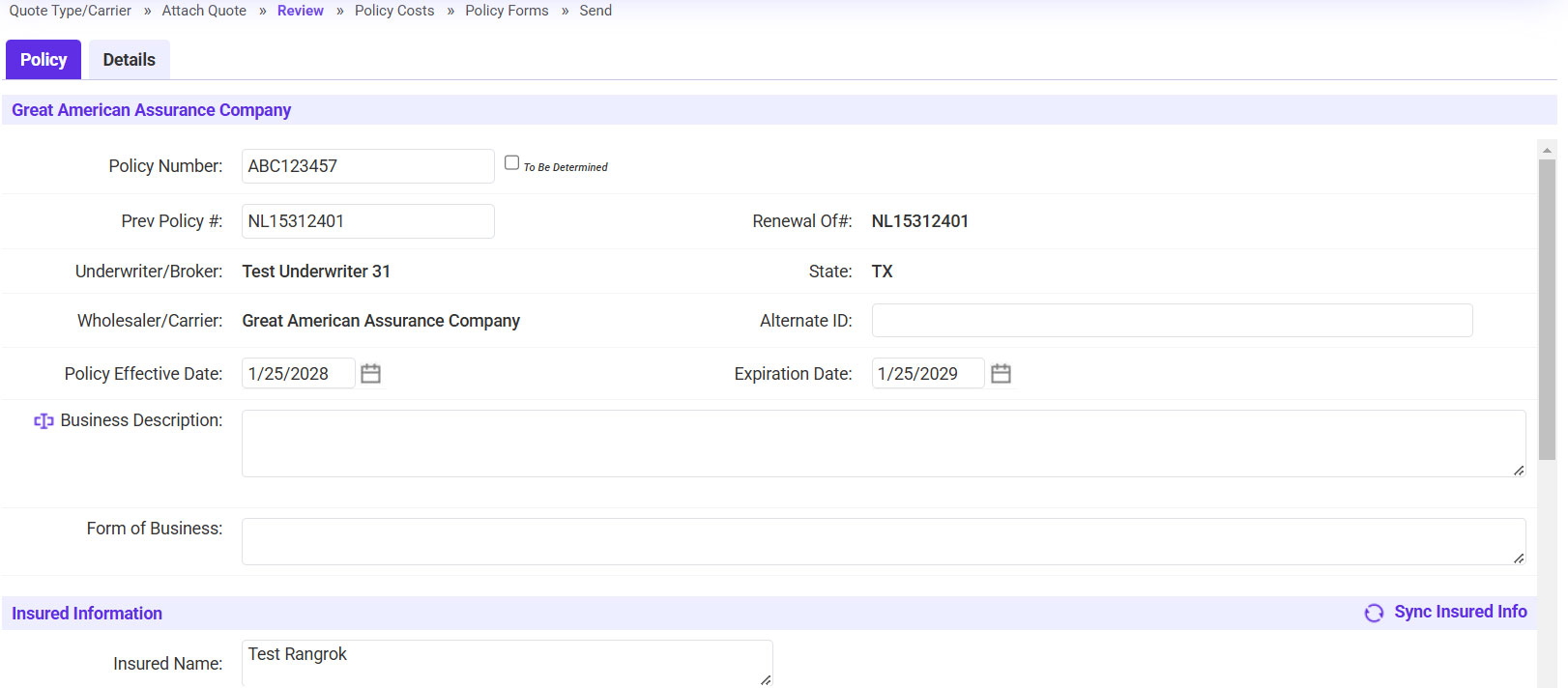
- Confirm the Details on the Policy tab.
- Confirm the Policy Dates.
- Confirm the Insured’s Information.
- Click Continue Processing.
- Enter the Renewal Premium amount.
- Click Continue.
- Confirm the Policy and Accounting details >> Check the verification box >> Click Continue.
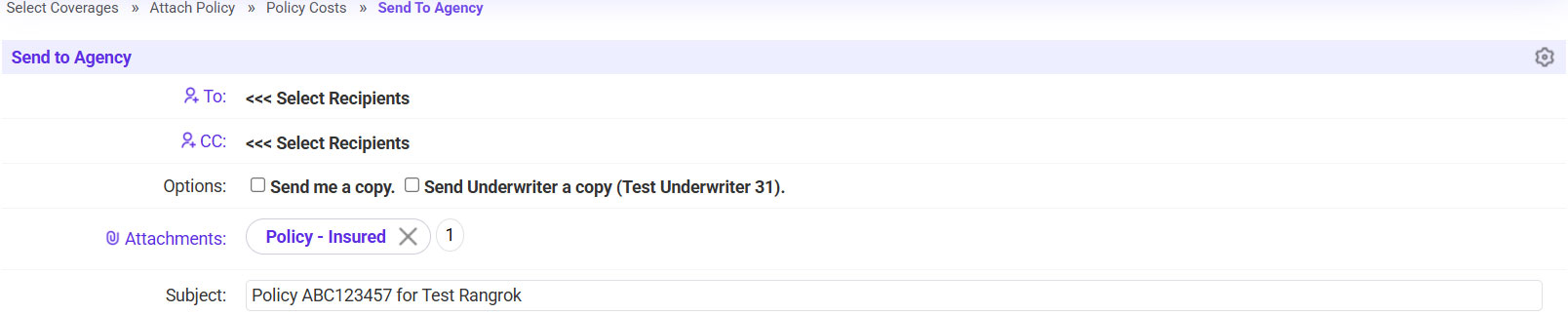
- Send the renewal policy to the agent.
- Click on the ‘To’ link >> Select the agent’s email address.
- Click Send.