
Quoting
- Open in the submission.
- Go to Find >> Select Insured.
- Search for the insured.
- Select the submission >> Click Continue.
- Click Continue Processing.




Requesting a Quote from the Carrier
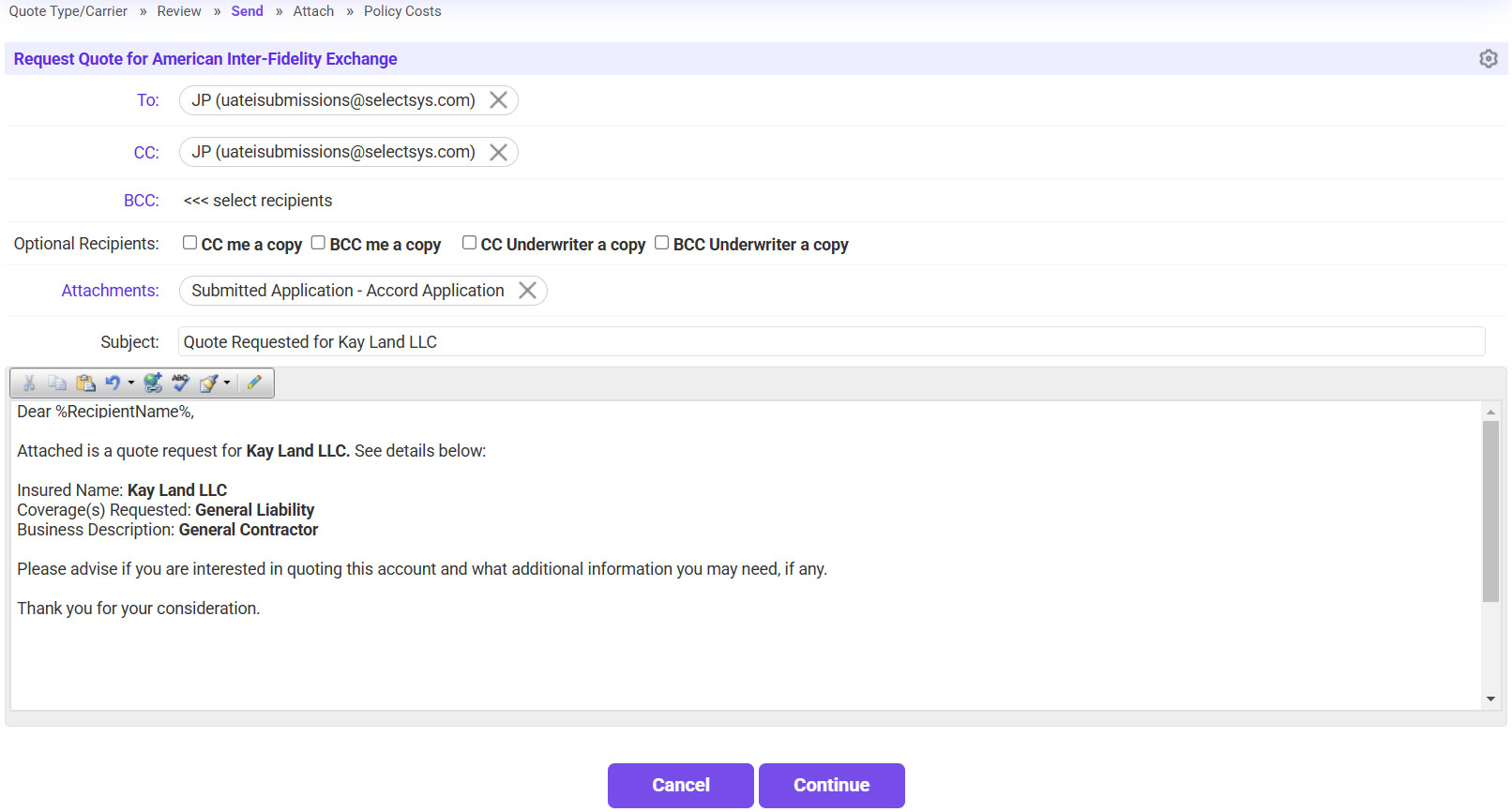
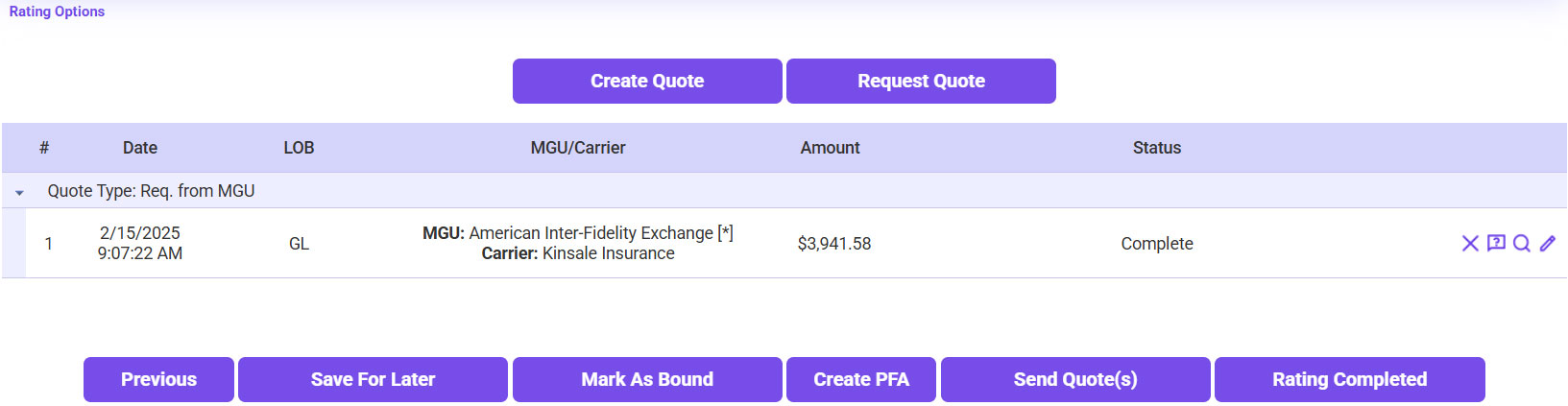
- Click Request Quote.
- Select the carrier >> Select the carrier’s email address in the Recipient field >> Click Save >> Click Continue.
- Click Continue to send the application to the carrier.


Sending the Carrier Quote to the Agent
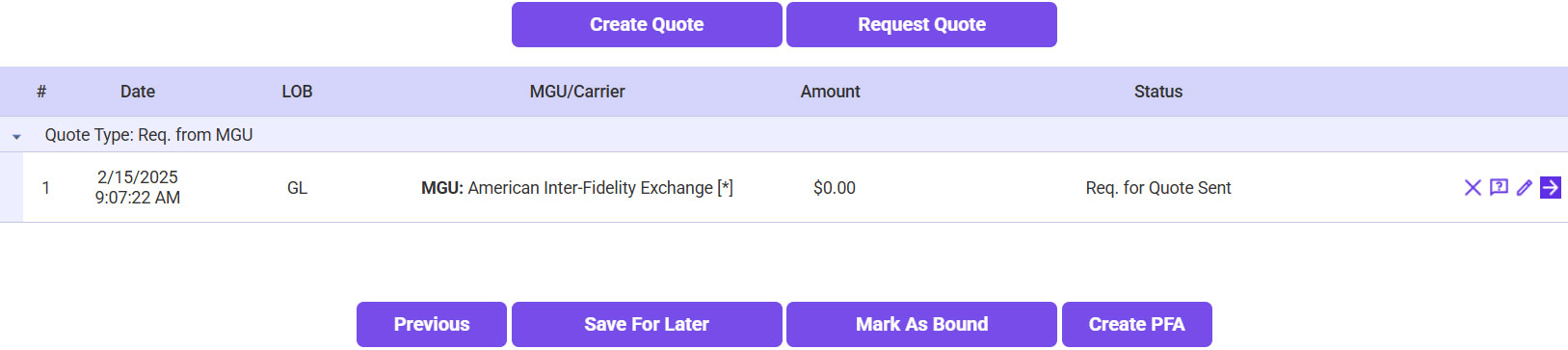
- Once the carrier sends the quote, go back into Expert Insured >> Click on the Quoting workflow >> Search for the Insured >> Open the submission.
- Click on the Continue Processing icon next to the applicable quote request.
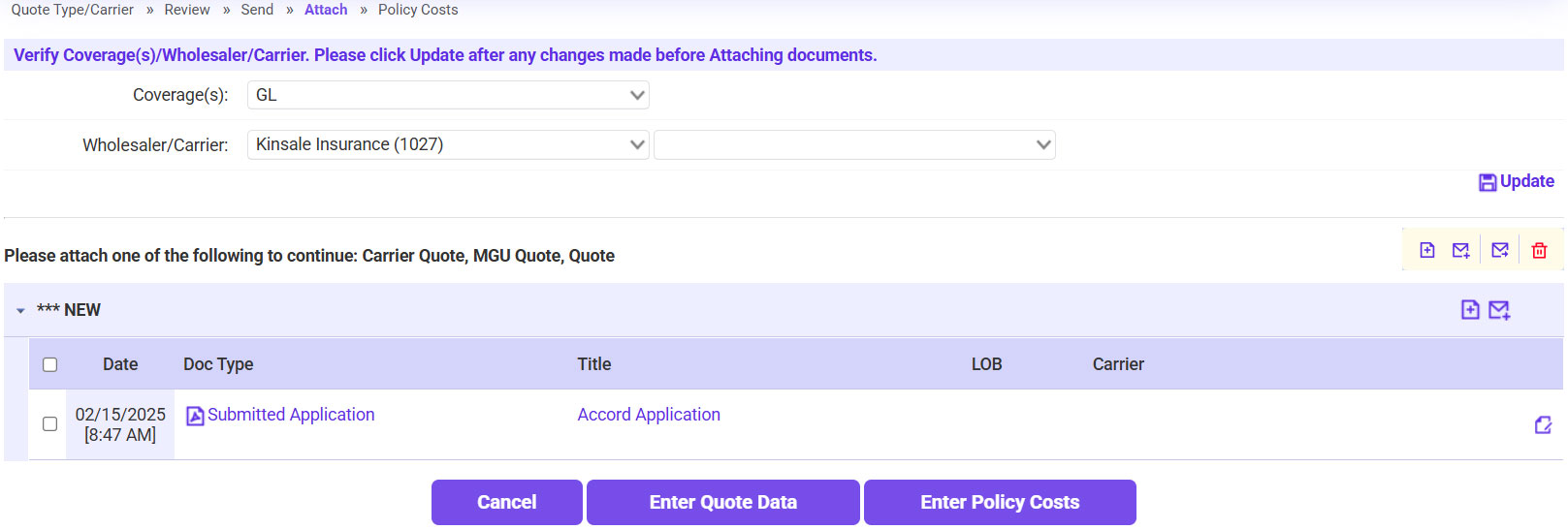
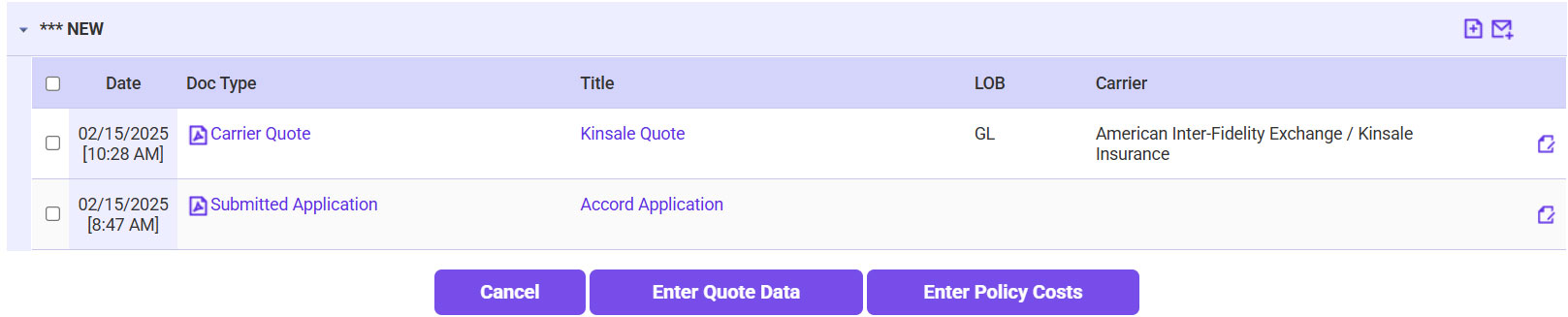
- Attach the carrier quote in the system.
- Click on the [document] plus sign icon.
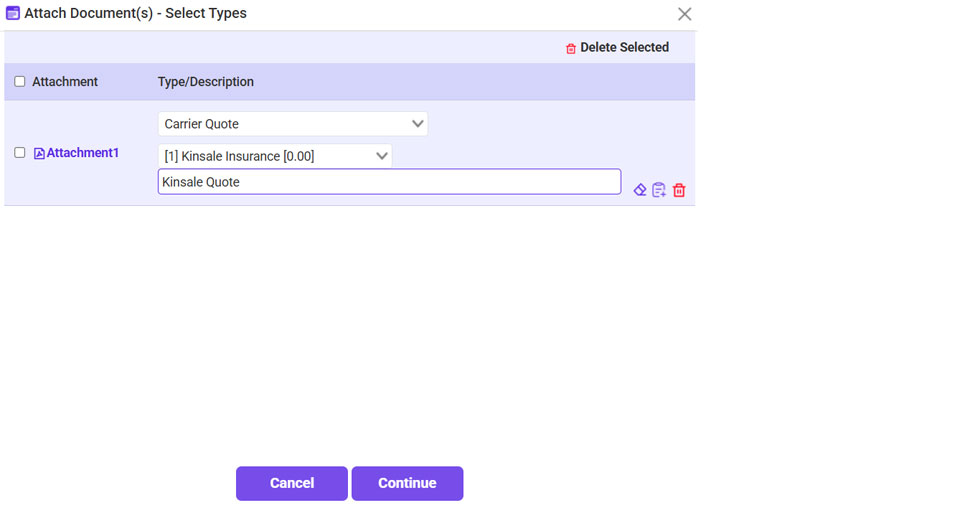
- Click Browse >> Select the quote document >> Once it is attached, click Continue.
- For the Type, select Carrier Quote >> Click Continue.
- Once the quote is attached, click Enter Policy Costs.
- Enter the Policy Costs.
- Enter the Pure Premium amount listed on the quote.
- If applicable, enter the TRIA premium, and mark TRIA as Included/Excluded.
- Enter the Taxes/Fees listed on the Quote. If needed, click on the plus sign icon to add any additional fees.
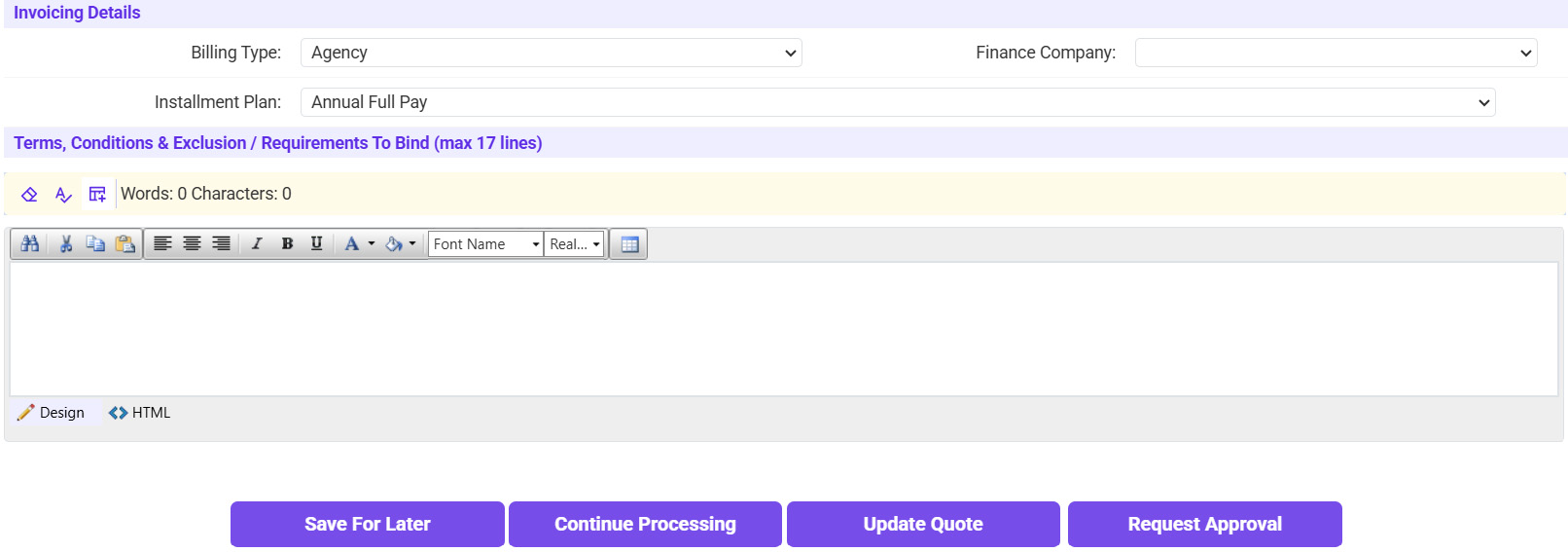
- Enter the Commission Percentages >> Enter the Min Earned Premium percent.
- Select the Bill Type >> If applicable, select the Finance Company >> Click Continue Processing.
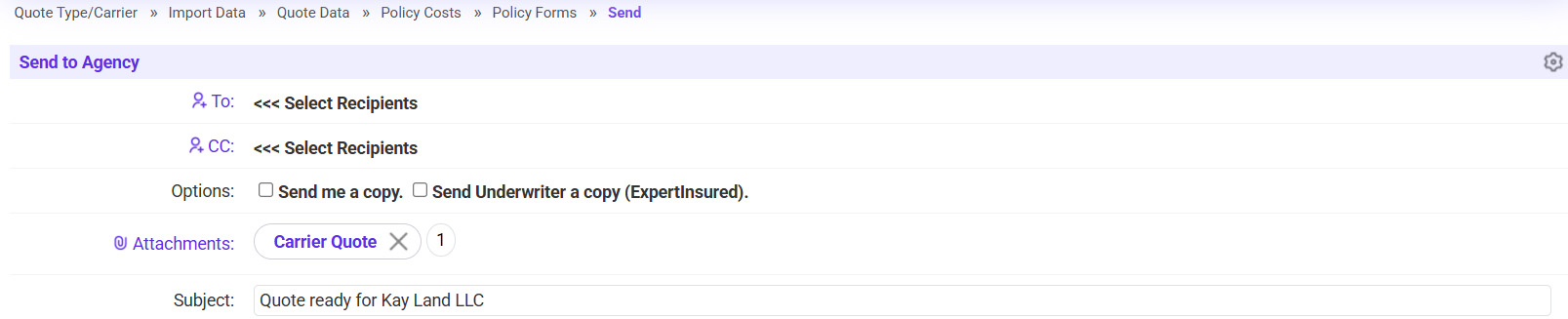
- Send the quote to the agent.
- Click on the ‘To’ link >> Select the agent’s email address.
- Click Send Now.
- If needed, you can create/send another quote >> Once finished quoting, click Rating Completed.






Note: If multiple quotes are created, once a request to bind comes back on one of them, all other quotes must be declined in EI to proceed with binding.

