Cancelling a Policy
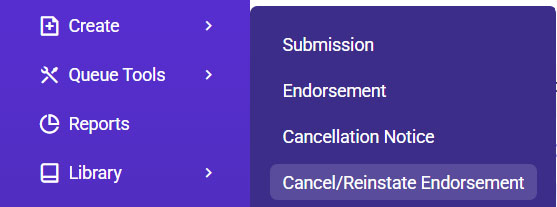
- Once the carrier sends the Cancellation Endorsement, go to Create >> Select Cancel/Reinstate Endorsement.
- Search for the account using the policy number or insured’s name >> Select the applicable result >> Click Continue.
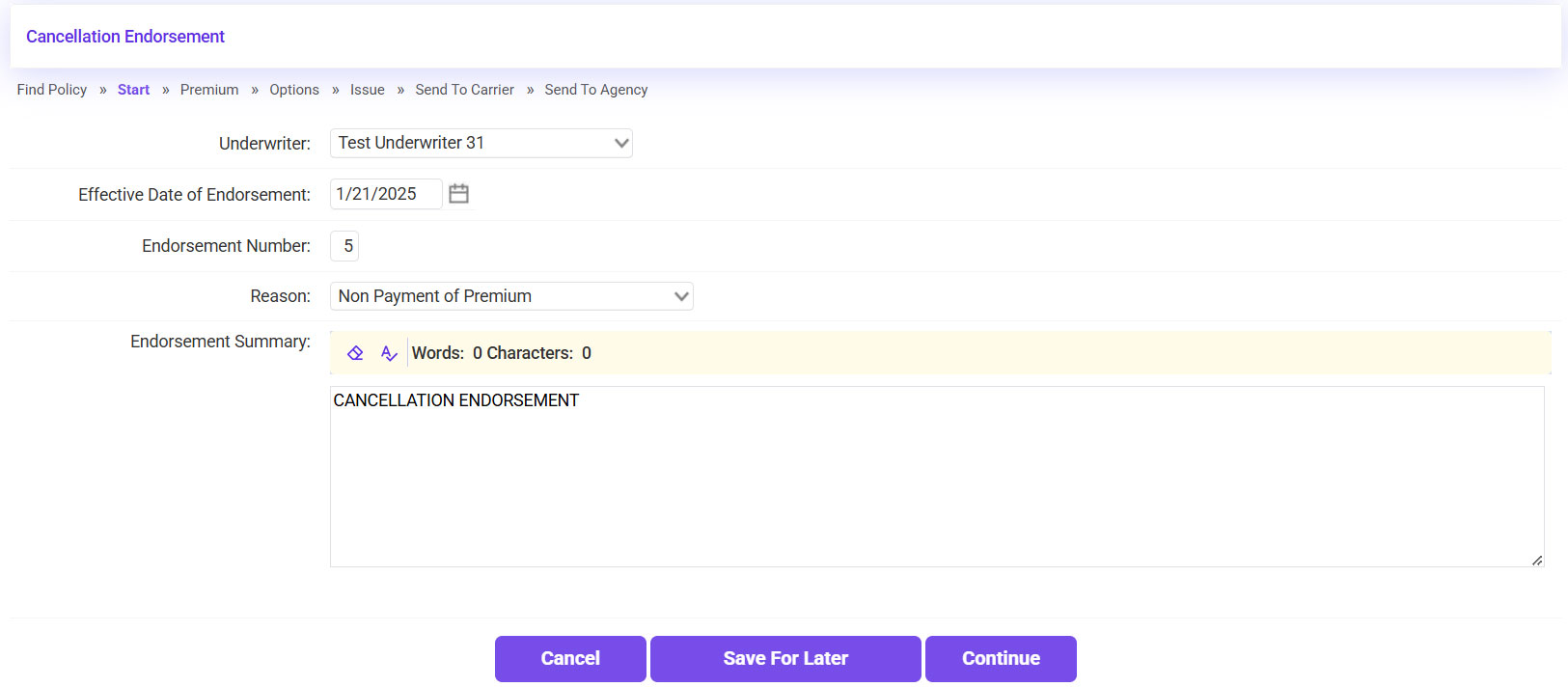
- The Effective Date and Reason should already be listed, confirm that they are accurate >> Click Continue.
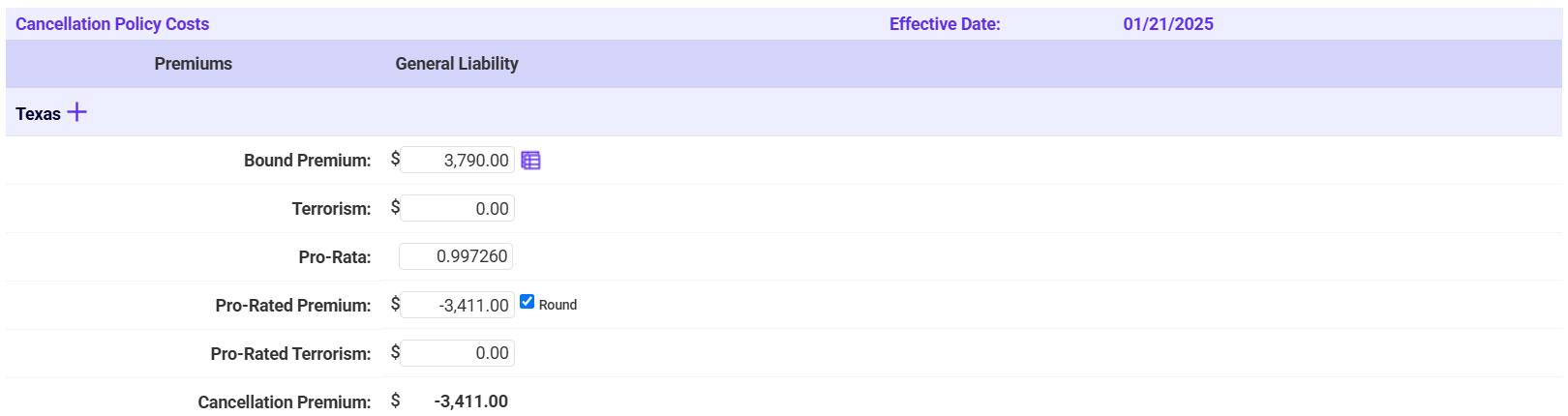
- Confirm/Update the Premium and Taxes/Fees listed to match the information shown on the Cancellation Endorsement >> Click Continue.
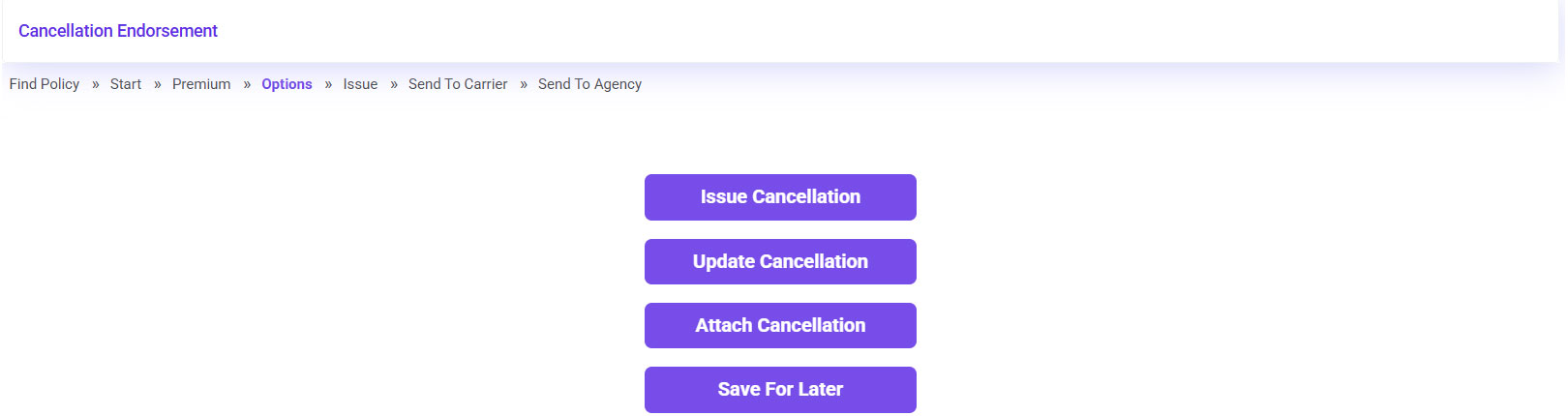
- Click Attach Cancellation.
- Attach the Cancellation Endorsement.
- Click on the plus sign icon next to the CAN section.
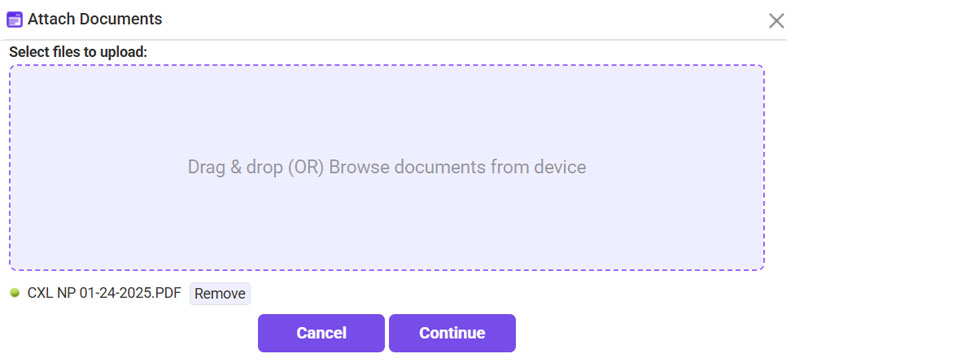
- Click Browse >> Select the Canc Endt >> Once attached, click Continue.
- For the Type, select Cancellation-Reinstatement Endorsement >> Click Continue.
- Click Continue.
- Confirm the information >> Check the Policy and Accounting Information verified box >> Click Continue.
- Click Bypass on the Send to Carrier page, as there is nothing to send to the carrier (we already have the Canc Endt).
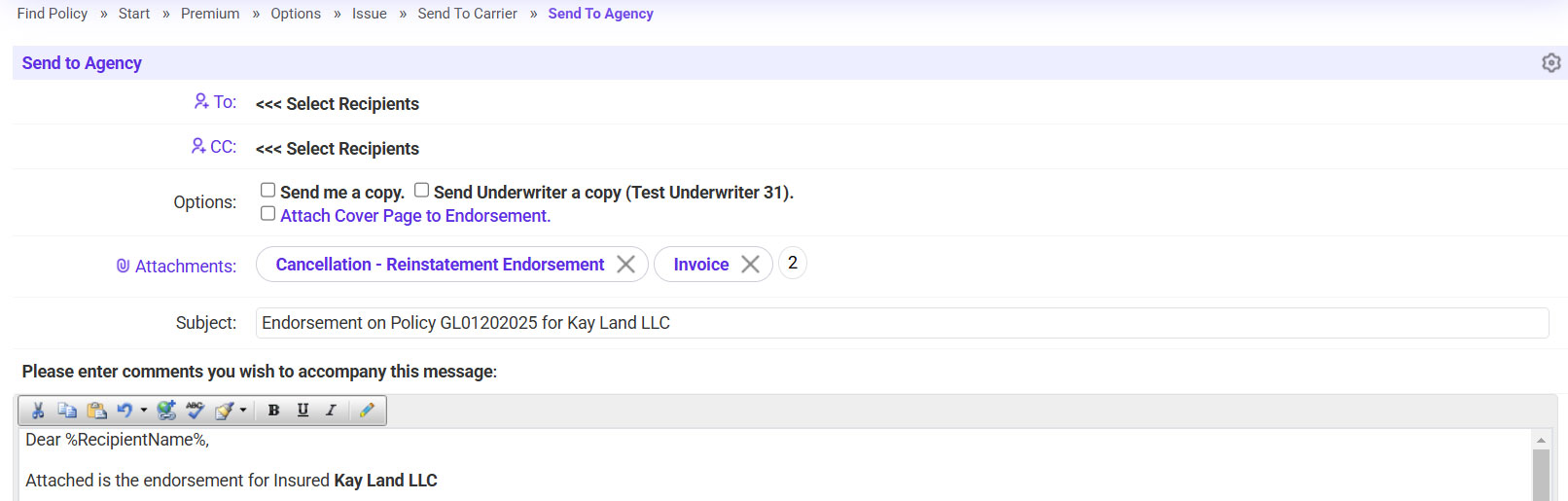
- Send the Cancellation Endorsement to the agent.
- Click on the ‘To’ link >> Select the agent’s email address.
- If needed, copy any additional recipients.
- Click Continue to send the Cancellation and mark the policy as Cancelled in EI.