Quoting
- Open in the submission.
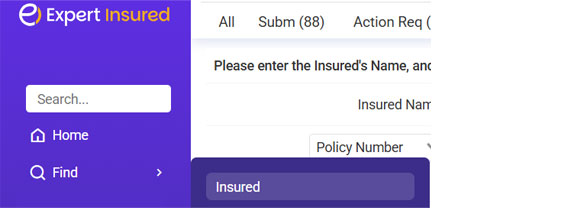
- Go to Find >> Select Insured.
- Search for the insured.
- Select the submission >> Click Continue.
- Click Continue Processing.



- Click Create Quote.
- Select the Wholesaler >> Select the Carrier >> Click Continue.
- Confirm the Insured’s Information on the Policy tab (name, address, etc.).
- Go to the Locs tab >> Click on the plus sign icon to add the Location Address.
- Click on the copy icon to auto-fill the physical address or manually enter the information.
- Enter the Additional Information (Year Built, Stories, Occupancy) >> If any land/building is Vacant, enter that information on the Vacant Land/BLDG tab >> If there are multiple locations, click Save & Add Another >> Once all are entered, click Save.
- Go to the LOB tab.
- For General Liability:
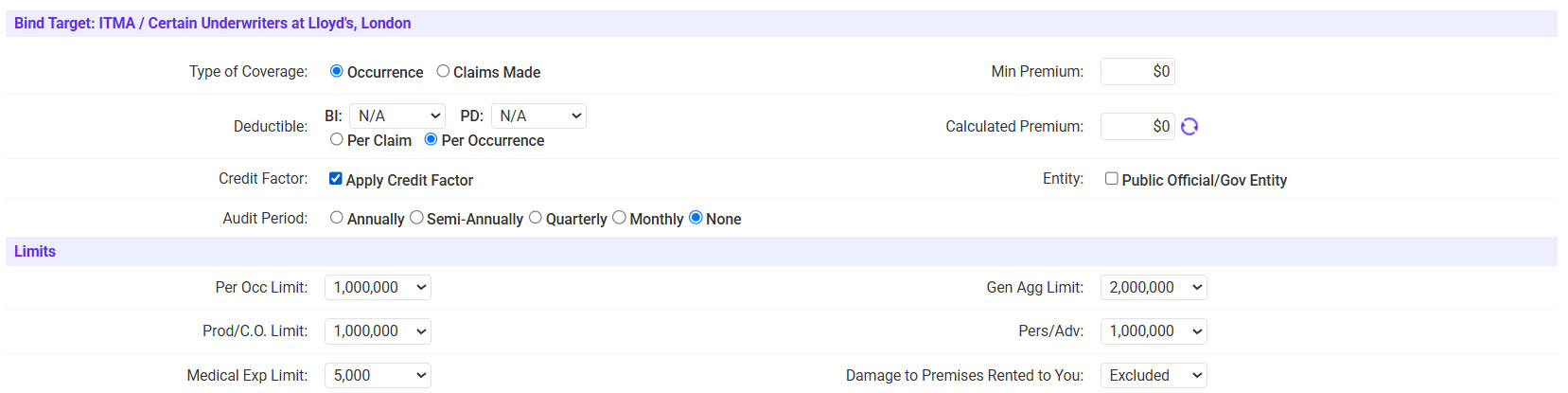
- Enter the Deductibles and Limits listed on the Acord application.
- Fill in the Class Information.
- Select the Location >> Select the Class.
- Click on the magnifying glass icon next to the Class field >> Search for the requested class >> Click Update.
- Enter the Exposure >> Enter the Rate >> The premium will be calculated >> Click Save.
- Add any Additional Coverages.
- Go to the Additional Coverages tab >> Click on the plus sign icon.
- Select the Coverage Type >> Select the requested additional coverage >> Enter the Premium amount >> Click Save.
- Add any Additional Insureds.
- Go to the Additional Insureds tab >> Click on the plus sign icon.
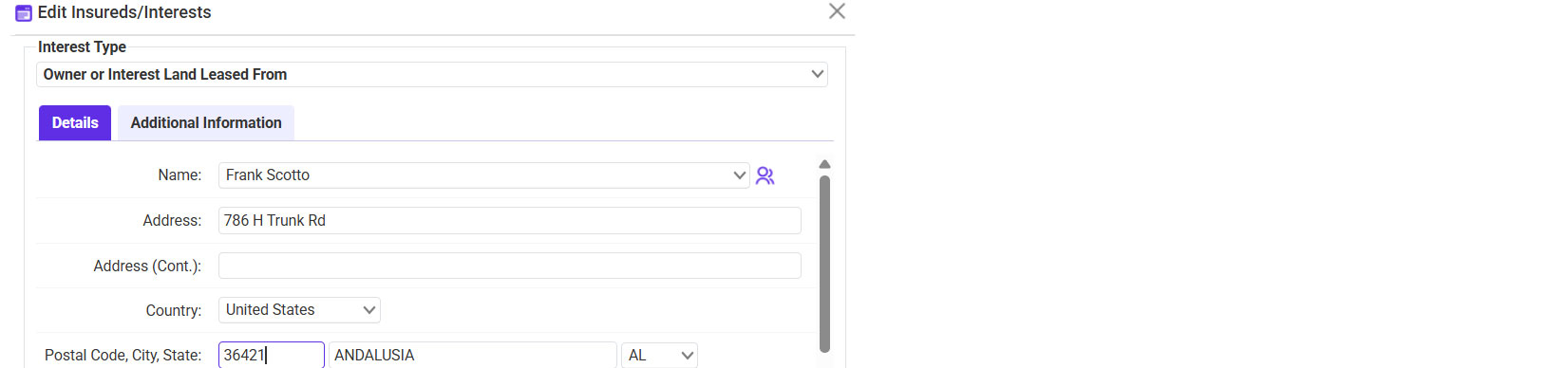
- Select the Interest Type >> Enter the AI’s Name and Address.
- If applicable:
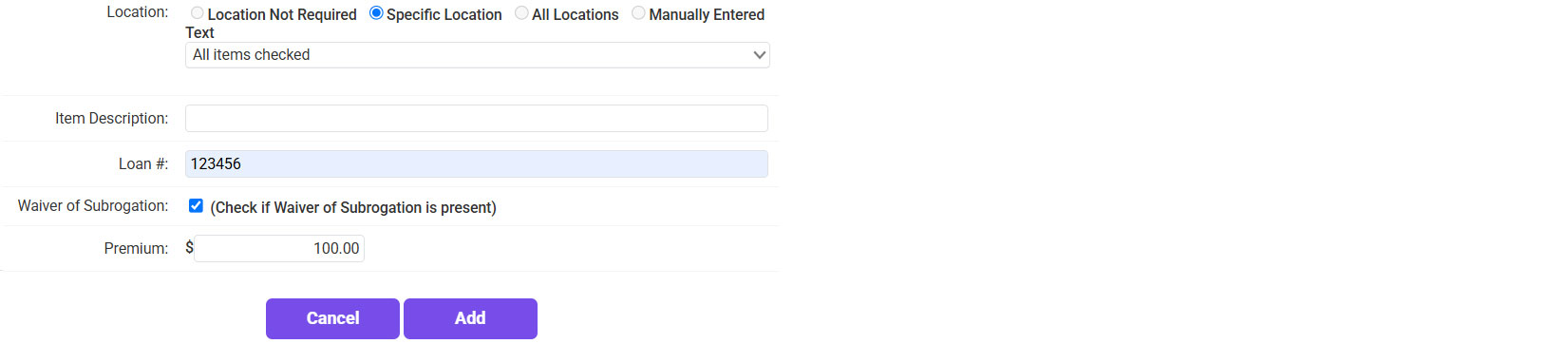
- Select a specific Location.
- Enter the Loan Number.
- Include a WOS (Waiver of Subrogation).
- Enter the Premium Amount.
- Click Add.
- Click Finished.
- On the Policy Costs page, select the Billing Type >> If applicable, select the Finance Company.
- Click Continue Processing.
- On the Policy Forms page, review the forms to confirm all are listed and add any optional forms needed >> Click Continue.
- Send the quote to the agent.
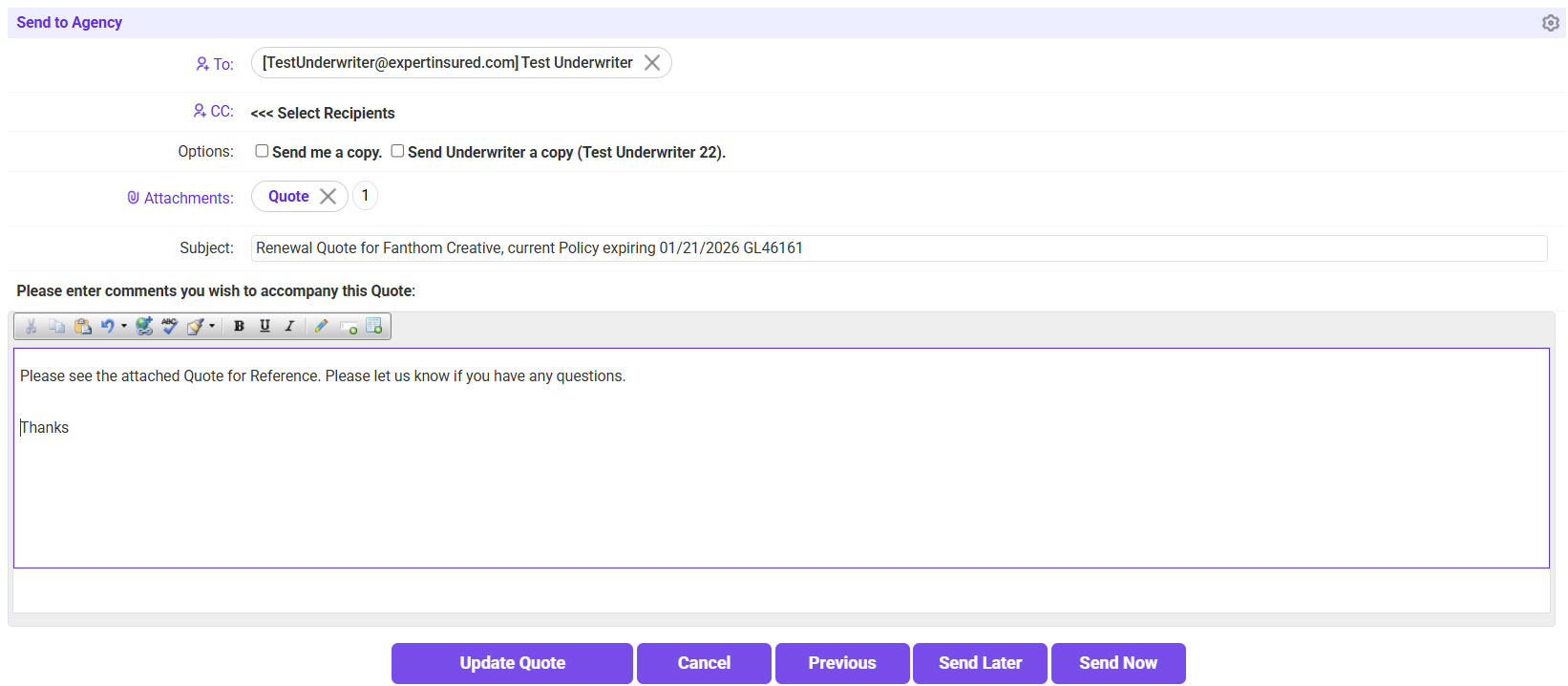
- To: Agency Contact
- If needed, send a copy to yourself or the UW.
- Body: Enter any wording needed.
- Click Send Now.
- If needed, you can update the quote.
- Once the quoting process has been completed and no further changes are needed, click Rating Completed.