Binding a Quote
- Once a bind request is received, go to Expert Insured >> Go to the In Process workflow.
- Search for the insured >> Select the account.
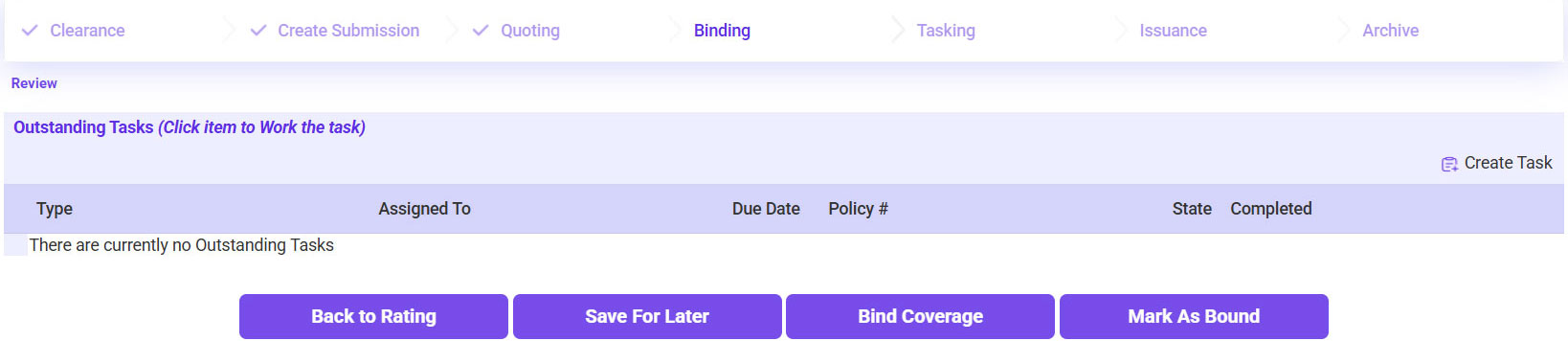
- Click Bind Coverage.
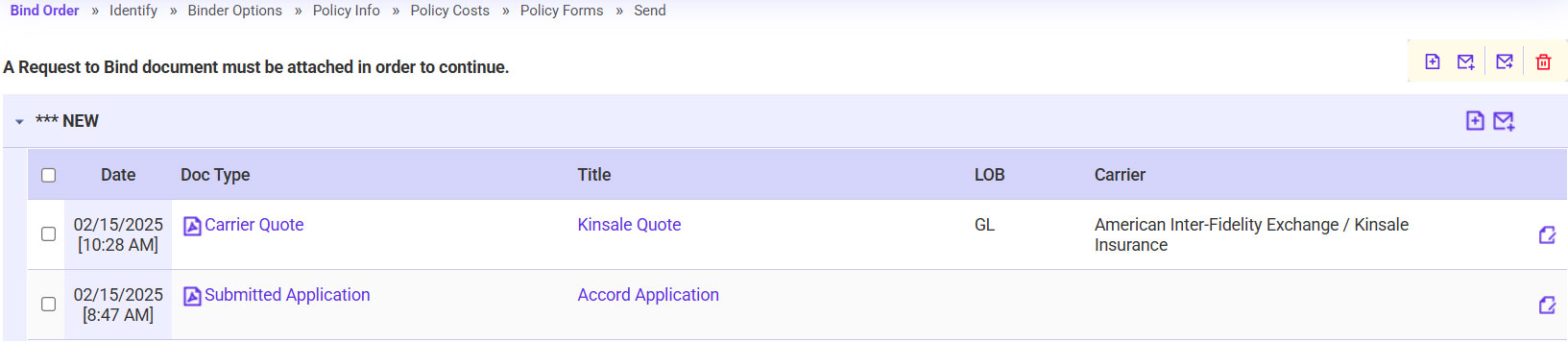
- Attach the Bind Request.
- Click on the plus sign icon.
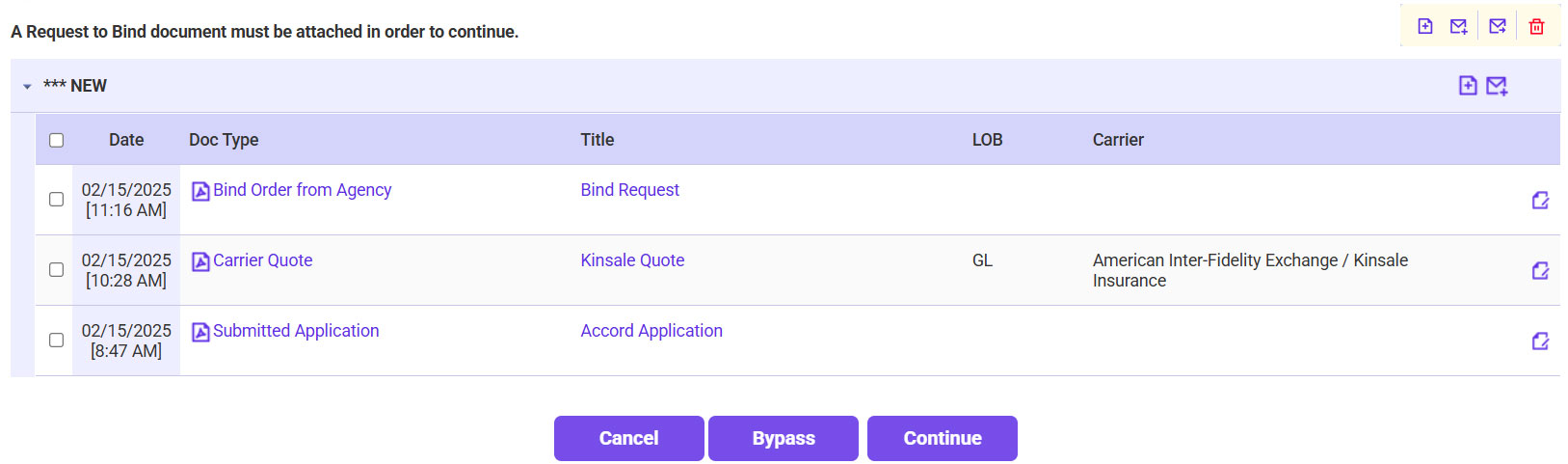
- Drag and drop the bind request >> Once loaded, click Continue.
- Type: Select Bind Order from Agency
- Once the bind request is attached, click Continue.
- Confirm the correct Quote is selected and the Wholesaler/Carrier Information >> Click Continue.
- If you are sure you want to bind the selected quote, click Continue.
- The Issue Policy option selected must be ExpertInsured >> Confirm the Premium amount matches what is on the requested quote to bind >> Select whether TRIA is included/excluded >> Click Continue Processing.
- Confirm the Insured’s Information on the Policy tab (name, address, etc.).
- Confirm the Location Address(es) on the Locs tab.
- Confirm the information on the LOB tab.
- Scroll down and click Create Binder.
- Confirm the Bill Type and Finance Company (if any) on the Policy Costs page >> Click Continue.
- On the Policy Forms page, review the forms to confirm all are listed and add any optional forms needed >> Click Continue.
- Verify the Policy and Accounting information >> Check the verification box >> Click Continue.
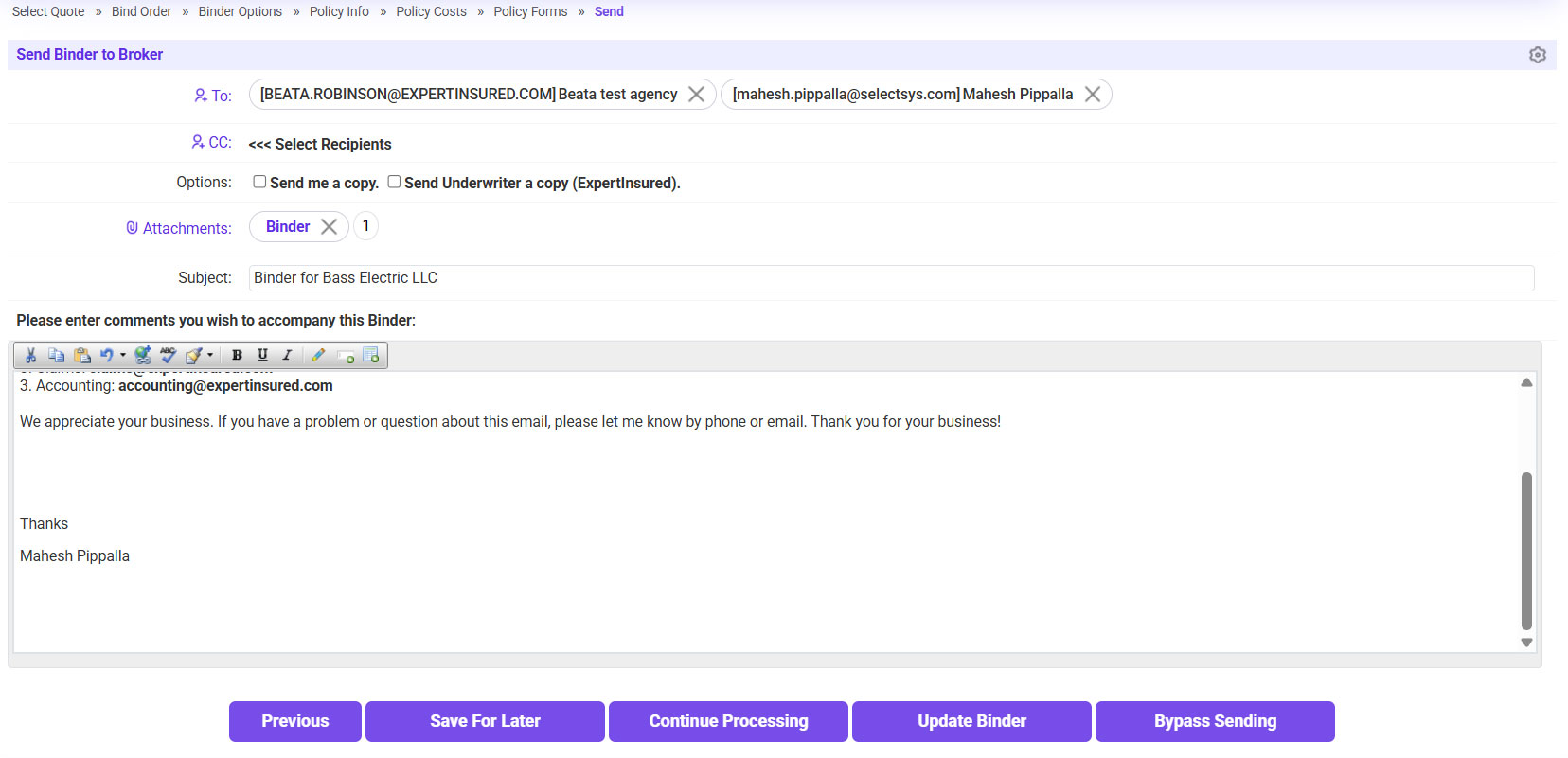
- Send the binder to the agent.
- To: Agency Contact
- If needed, send a copy to yourself or the UW
- Click Continue Processing to send the email.
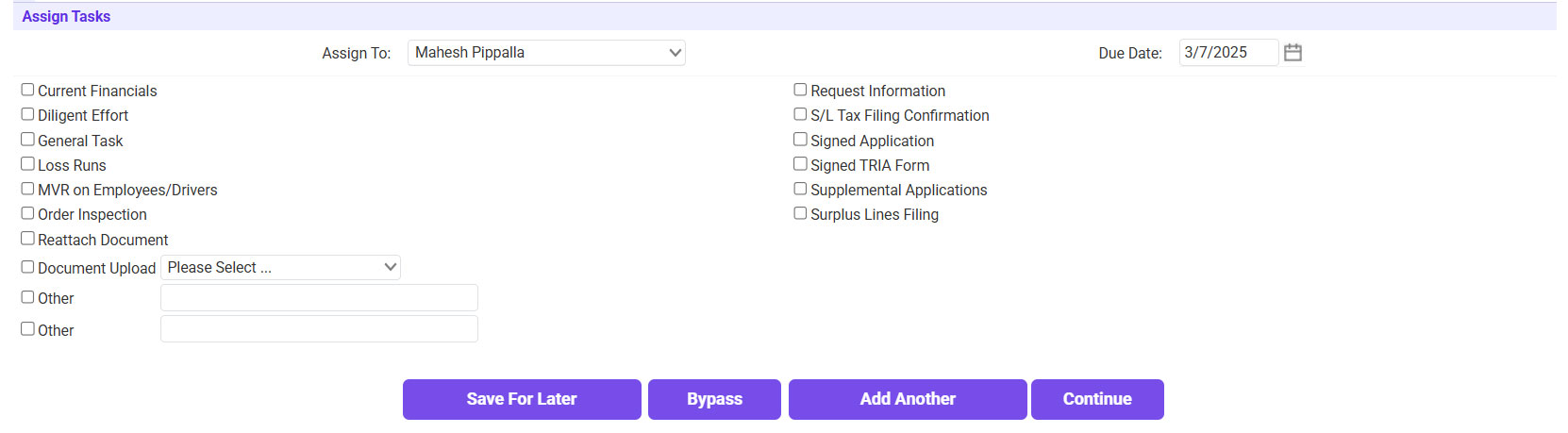
- If there are any outstanding items needed, check the box next to the applicable item to create a task >> Click Continue.
- If no tasks need to be created, click Bypass.