Creating an Endorsement
Initiating the Endorsement using the Create option in EI
- Go to Expert Insured and log in >> From the Home page, go to Create >> Select Endorsement.
- Locate the policy you are endorsing.
- Enter the policy number or insured’s name >> Click Search.
- Select the applicable result >> Click Continue.
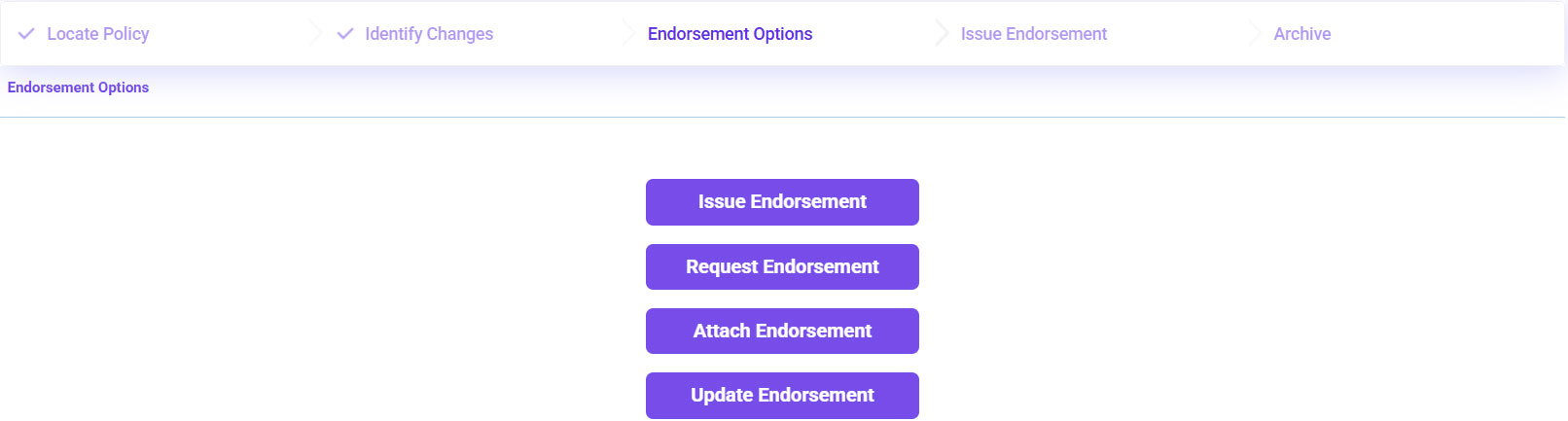
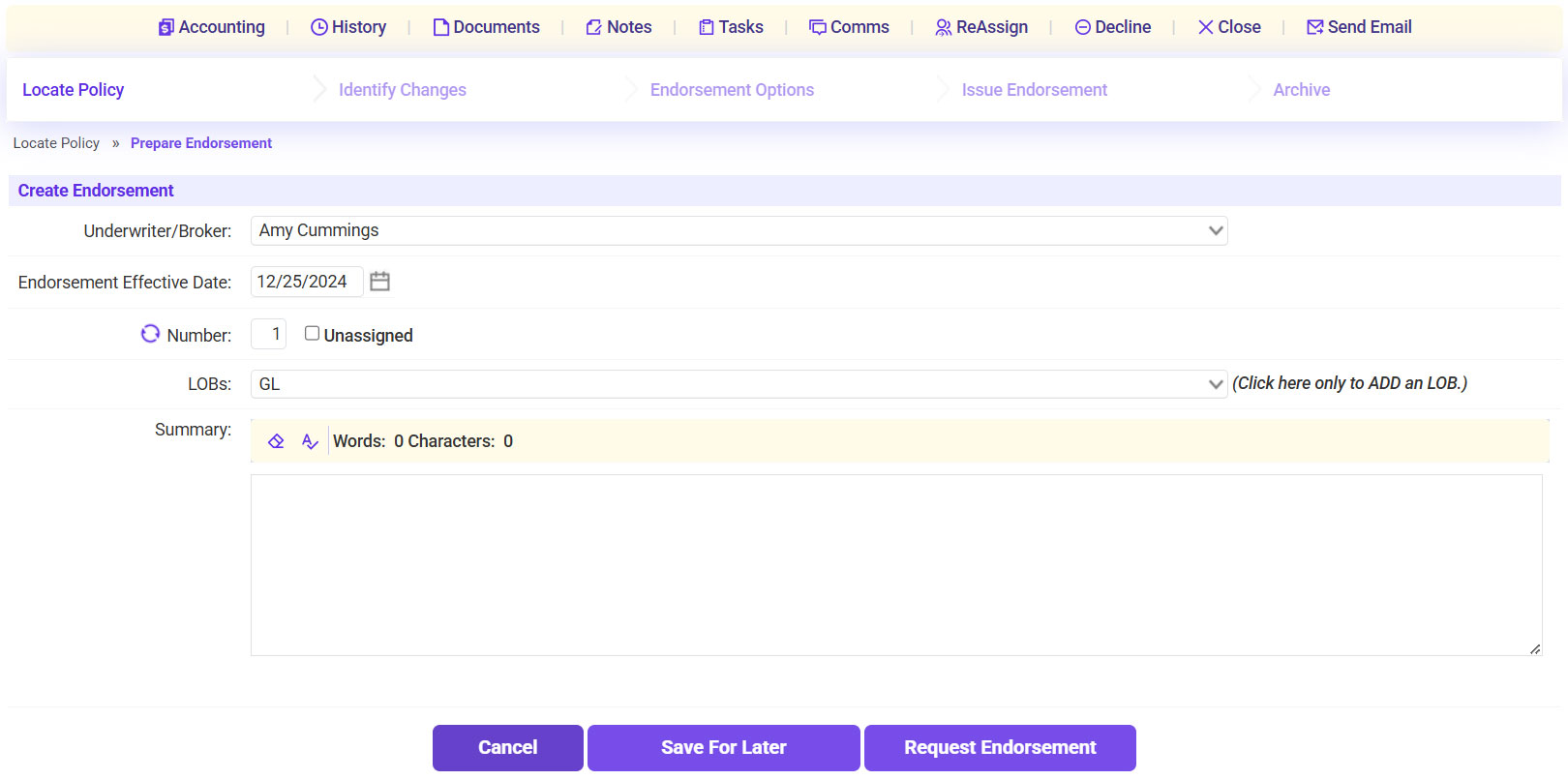
- Enter the Endorsement Effective Date >> Enter the Endorsement Reason into the Summary field >> Click Request Endorsement.
- Attach the Endorsement Request Email from the Agency/Insured.
- Click Continue Processing.





Requesting Endorsement from Carrier
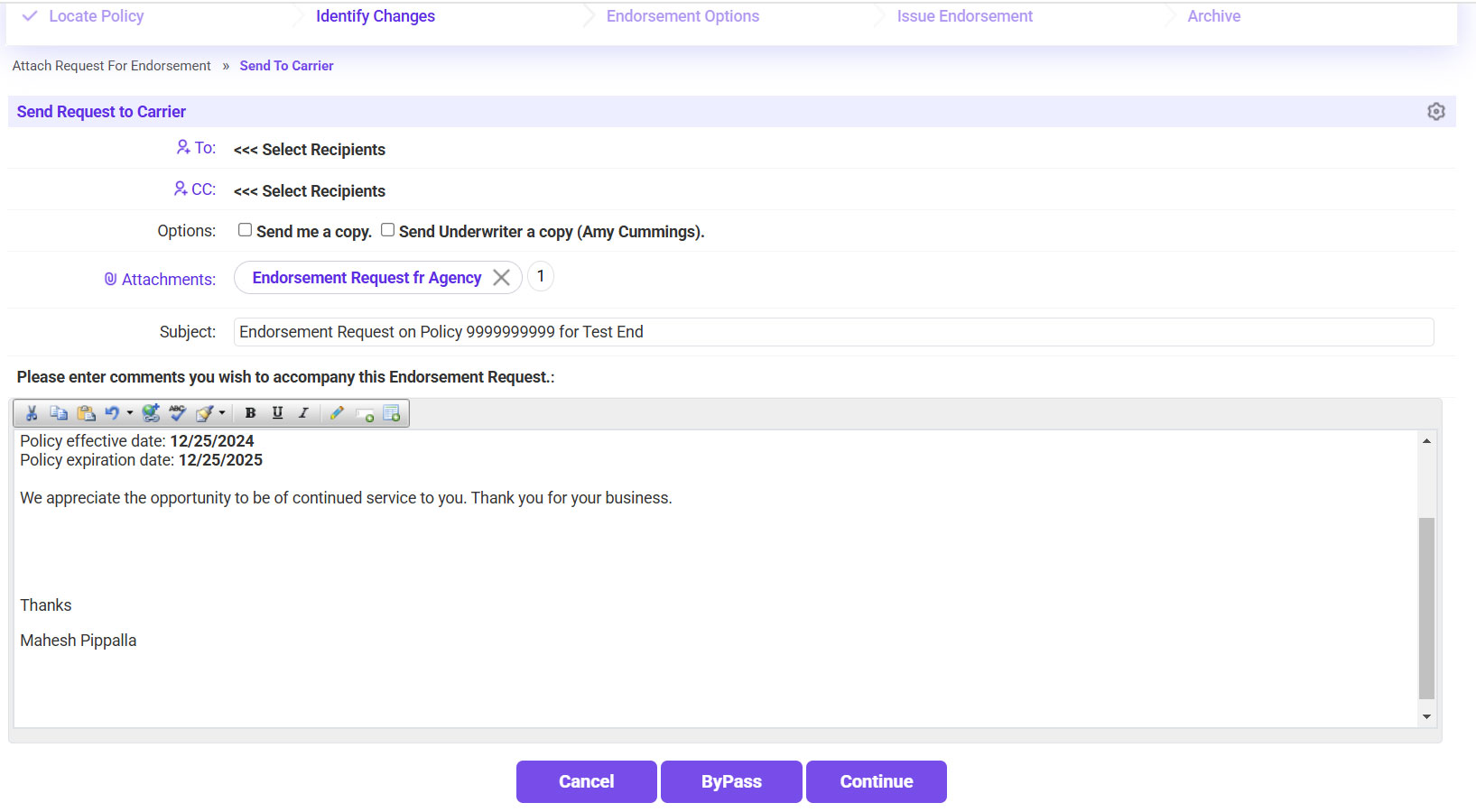
- Email the Carrier to request the Endorsement.
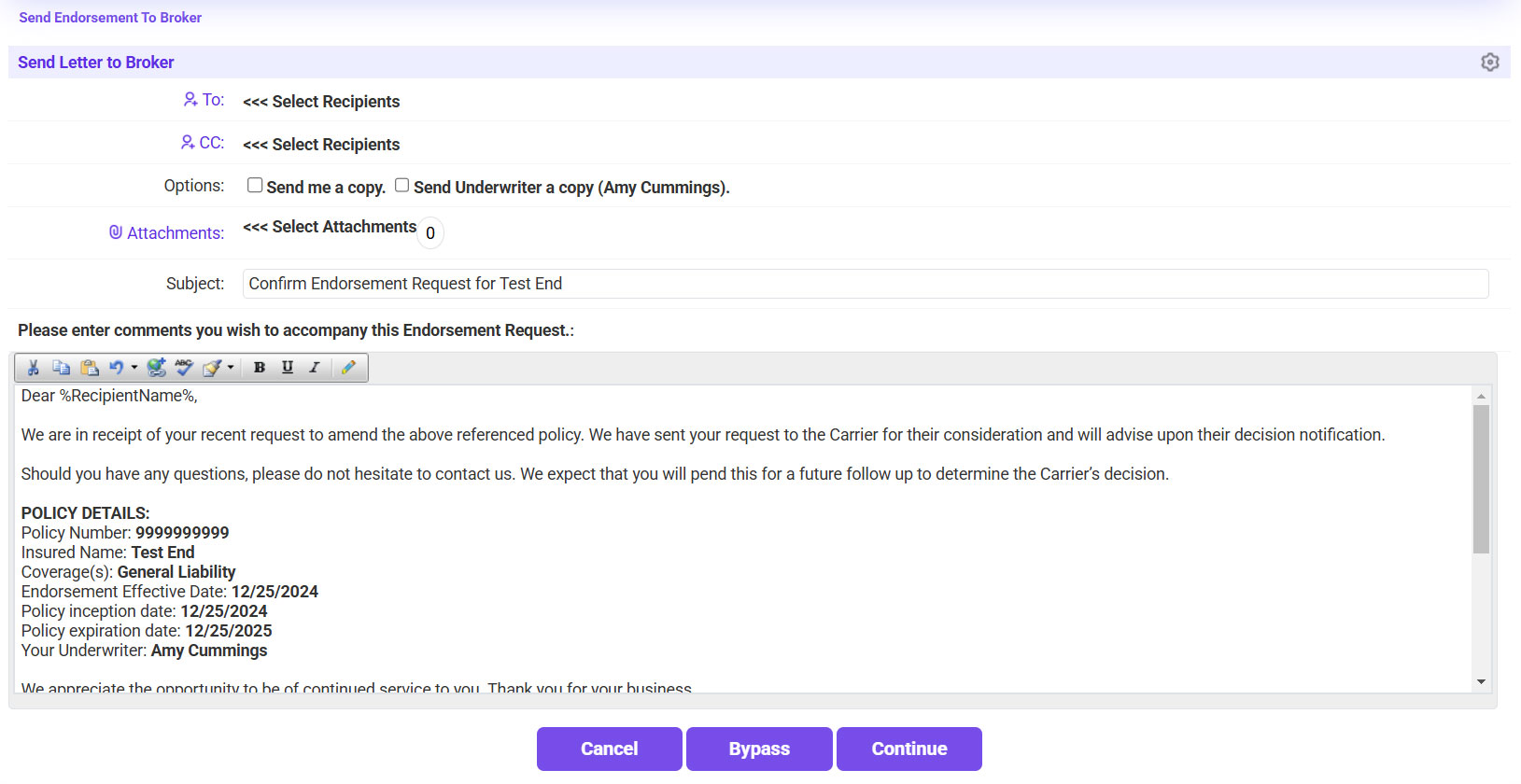
- Send a confirmation email to the agent >> Click Continue.
- Once the endorsement document is received from the carrier, go to the Carrier Workflow >> Search for the submission >> Select and open the submission.
- Click on Attach Endorsement.
- Attach the endorsement document that was received from the carrier to the Endt Request.
- Click on the plus sign icon next to the applicable ENDT section.
- Drag and drop/select the endorsement document >> Click Continue >> The Type should be Endorsement >> Click Continue >> Click Continue Processing.
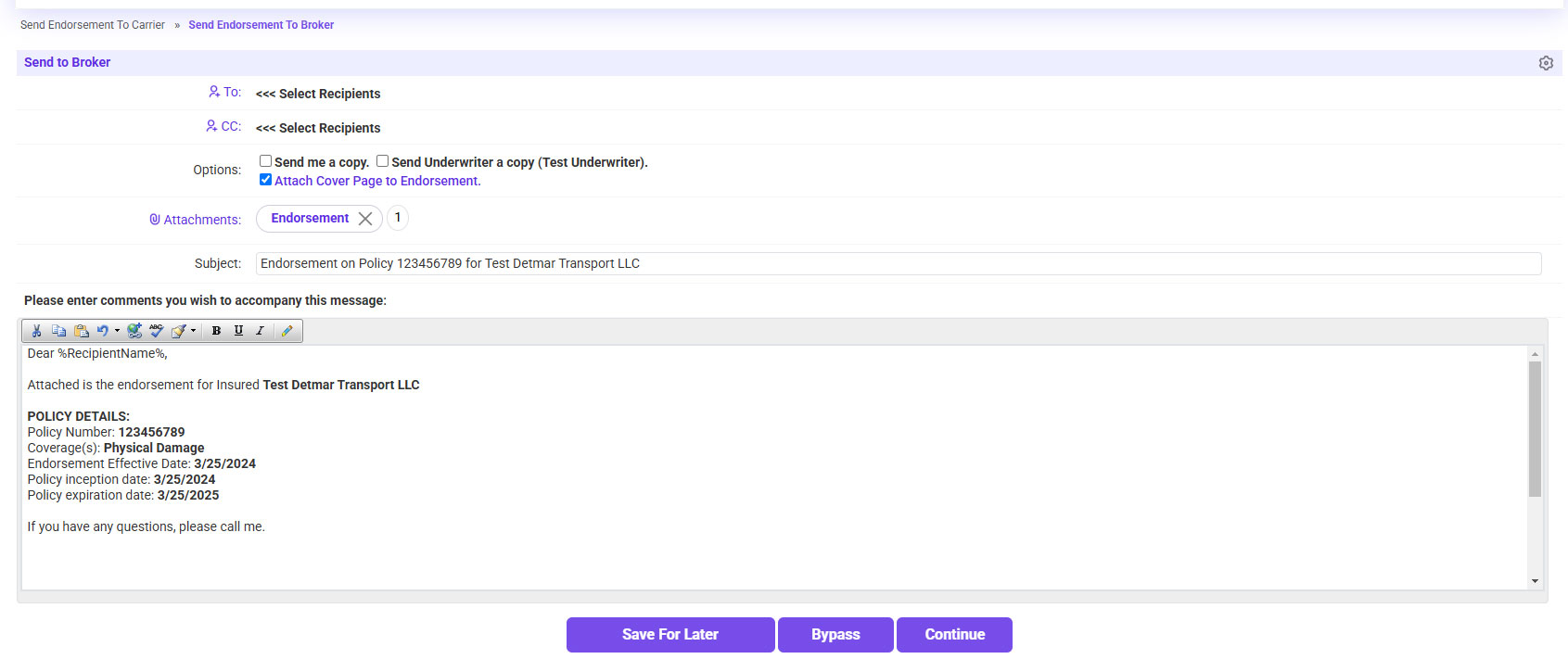
- Email the endorsement document to the Agent.
- select their email by clicking on the ‘To’ link.
- Check the Attach Cover Page to Endorsement box.
- Click Continue.