Inspections
Ordering an Inspection
- Locate and open the policy for which you are ordering an inspection.
- From the Home page of Expert Insured, go to Find >> Select Insured.
- Enter the insured’s name or policy number >> Click Search.
- Expand the insured’s section >> Double-click on the applicable policy (check the policy number, term, etc.).
- Go to the Insured Information tab.
- Click on the drop-down arrow next to Services >> Select Inspections.
- Click New Inspection.
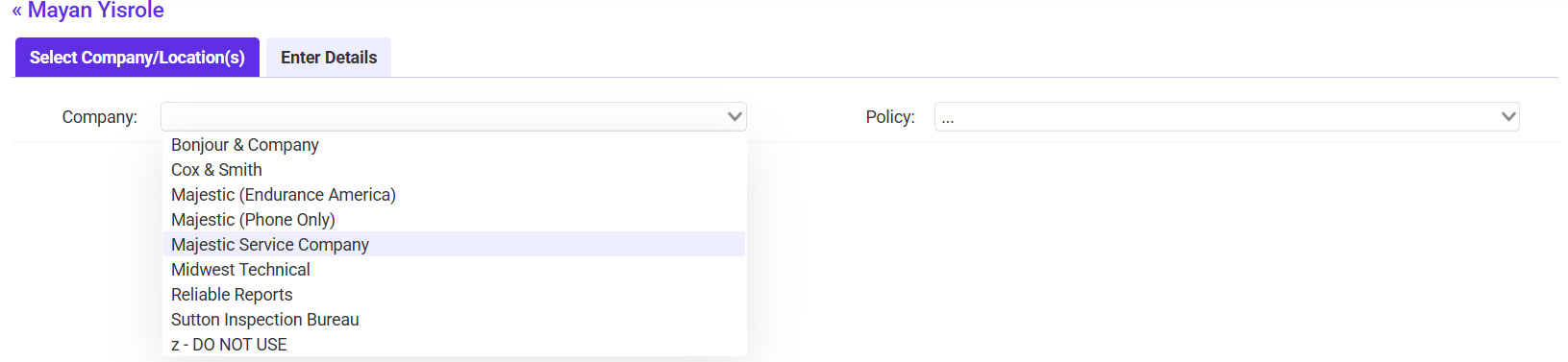
- Select the Inspection Company >> Select the applicable Policy.
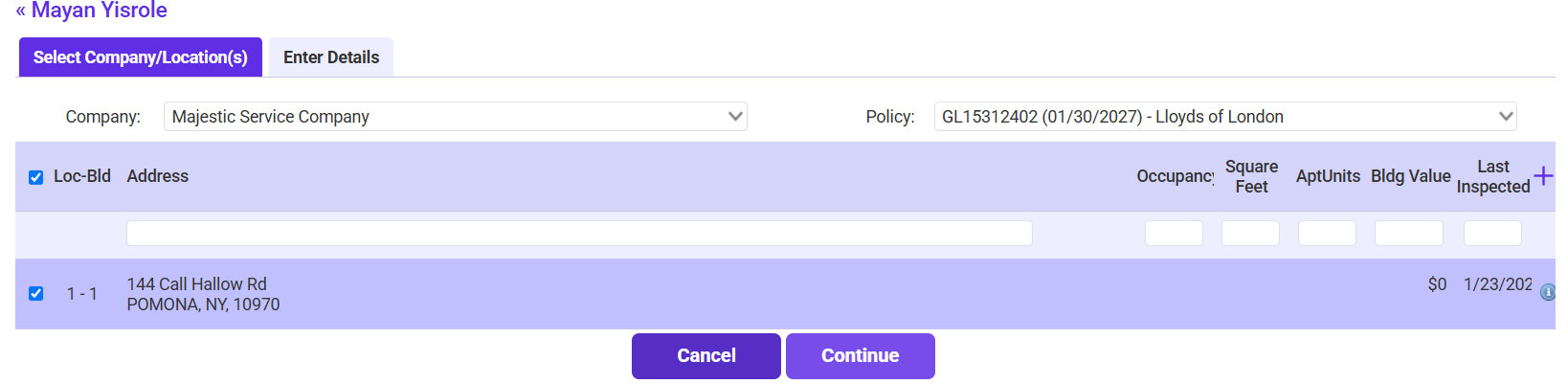
- Check the box next to the Location that needs to be inspected >> Click Continue.
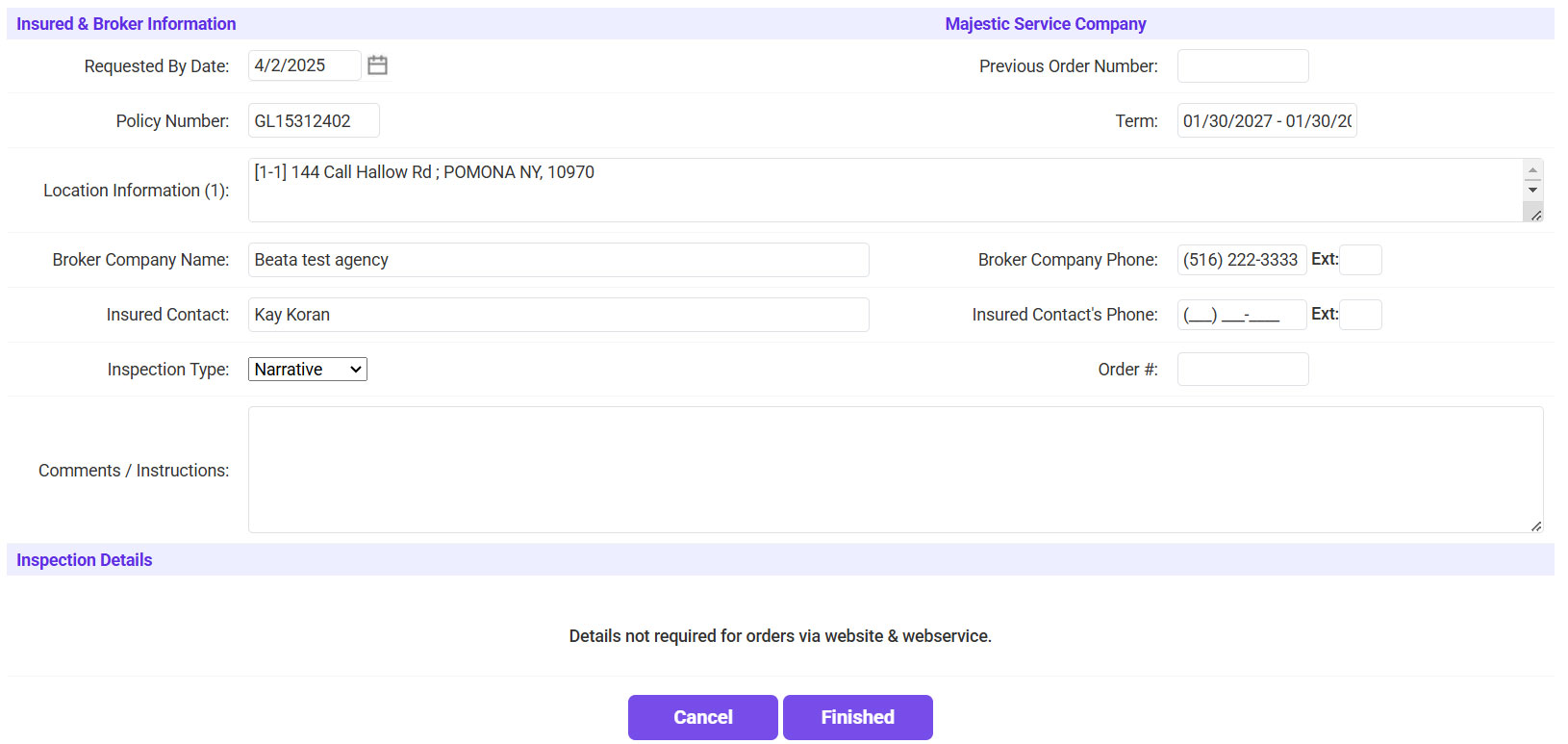
- Confirm/Fill in the Inspection Details >> Click Finished.
- If needed, amend the Requested By Date.
- Confirm the Policy Number, Term, and Location.
- Enter the Insured Contact information.
- Enter any additional Comments/Instructions.
- Confirm the Status of the Inspection shows as Request Sent.
- Click on the Edit Inspection/Follow up button to make any changes/follow up on the inspection.
- Click Send Request if the request needs to be sent again.
- To view any recommendations from the inspector, click on Add/View Recs or go to the Recommendations tab.