
Setting Up a New User
- Log in to Expert Insured >> On the sidebar, click on Administration.
- Click on Users.
- Click New User.
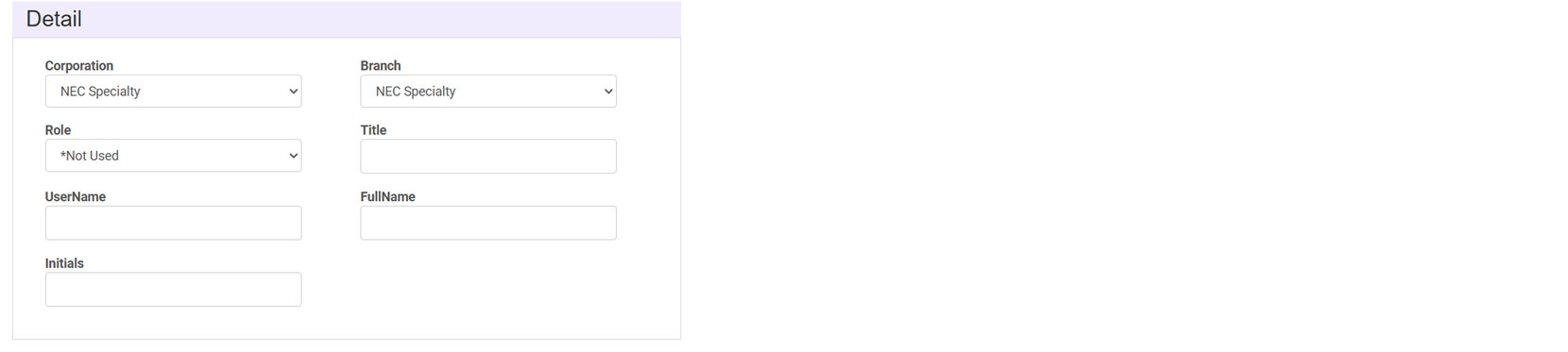
- Fill in the Detail section.
- Select the Branch >> Select a Role >> Enter their Title.
- Enter the Username. The Username is typically the first letter of the first name followed by the last name. The Password will be the same as the username until changed. The URL, Username, and Password must be emailed to the new user; the system does not send it automatically.
- Enter the Full Name of the user >> Enter their Initials.
- Fill in the user’s Contact details (Email and Phone).
- If the user is an Admin/Manager, check the applicable Security box, otherwise the account created will be a regular user account.
- Click Create.






Note: If a user’s account should be inactivated, uncheck the Active box on the Users screen.

